
Cloud, browser and phone
The same board on a second screen. The work still runs on your desktop.
What the account is for
An account turns on cloud sync. That puts your board in a browser and on your phone, and lets them reach your desktop. The desktop app works without one.
A Borago Board account (email and password, with optional two-factor authentication) enables two-way sync between the desktop's local database and the cloud service at board.boragosoft.com, signs in the browser and phone boards, and authenticates the tunnel the desktop opens for them. It is not a licence, does not gate updates, and holds no AI credential it can read. Cloud sync is a per-device toggle in Settings, off by default. One desktop installation is linked per account. Work created while signed out stays on the device and is claimed by the next account that signs in there.
What works where
"Via desktop" means the control is shown there and works while your desktop is online, through the tunnel the desktop opens. When it is not, the control is disabled with a reason, never hidden.
| Capability | Desktop app | Browser on your network | Cloud browser | Phone | Needs the desktop online |
|---|---|---|---|---|---|
| Read the board, tasks, comments, notes, chat history | yes | yes | yes | yes | no |
| Create and edit tasks, drag between columns | yes | yes | yes | yes | no |
| Answer the agent's question | yes | yes | yes | yes | no. A new run starts with the answer once the desktop sees it |
| Notifications and their read state | yes | yes | yes | yes | no |
| Create a project | yes | yes | yes | yes | no to create, yes to start it |
| Start, stop, restart, rebuild a container | yes | yes | via desktop | via desktop | yes |
| Open a terminal into the container | yes | yes | via desktop | via desktop | yes |
| Run and stop project scripts | yes | yes | via desktop | via desktop | yes |
| Planning chat, the calls that spend | yes | yes | via desktop | via desktop | yes |
| Set a project secret or one environment variable | yes | yes | via desktop | via desktop | yes |
| Link a vault key into a project | yes | yes | yes | yes | no |
| Check a port | yes | yes | partly | partly | no. The cloud checks other projects' ports only, not programs on the machine |
| Add the firewall rule for container management | yes | yes | via desktop | via desktop | yes, and a person at the machine for the password |
| Connect a repository by signing in | yes | yes | via desktop | via desktop | yes |
| Resume a held queue, stop a task | yes | yes | via desktop | via desktop | yes |
| See Docker status, the gVisor warning, why the queue is held | yes | yes | yes | yes | shows the last known state when offline |
| Attach files and images | yes | yes | Pro, Max and the trial | Pro, Max and the trial | no |
| Draw a picture to attach | yes | yes | yes | yes | no |
| Take a screenshot to attach | yes | no, the page is plain http | yes, the browser's own picker | no | no |
| Take a photo to attach | yes | no, the page is plain http | yes | yes | no |
| Dictation | yes | no, the page is plain http | no | no | no |
| Browse the desktop's filesystem | yes | never | never | never | by design. Only the desktop app reads its own disk |
| Run the AI agent | yes | yes, on the desktop | never | never | the desktop is the only runner |
The phone
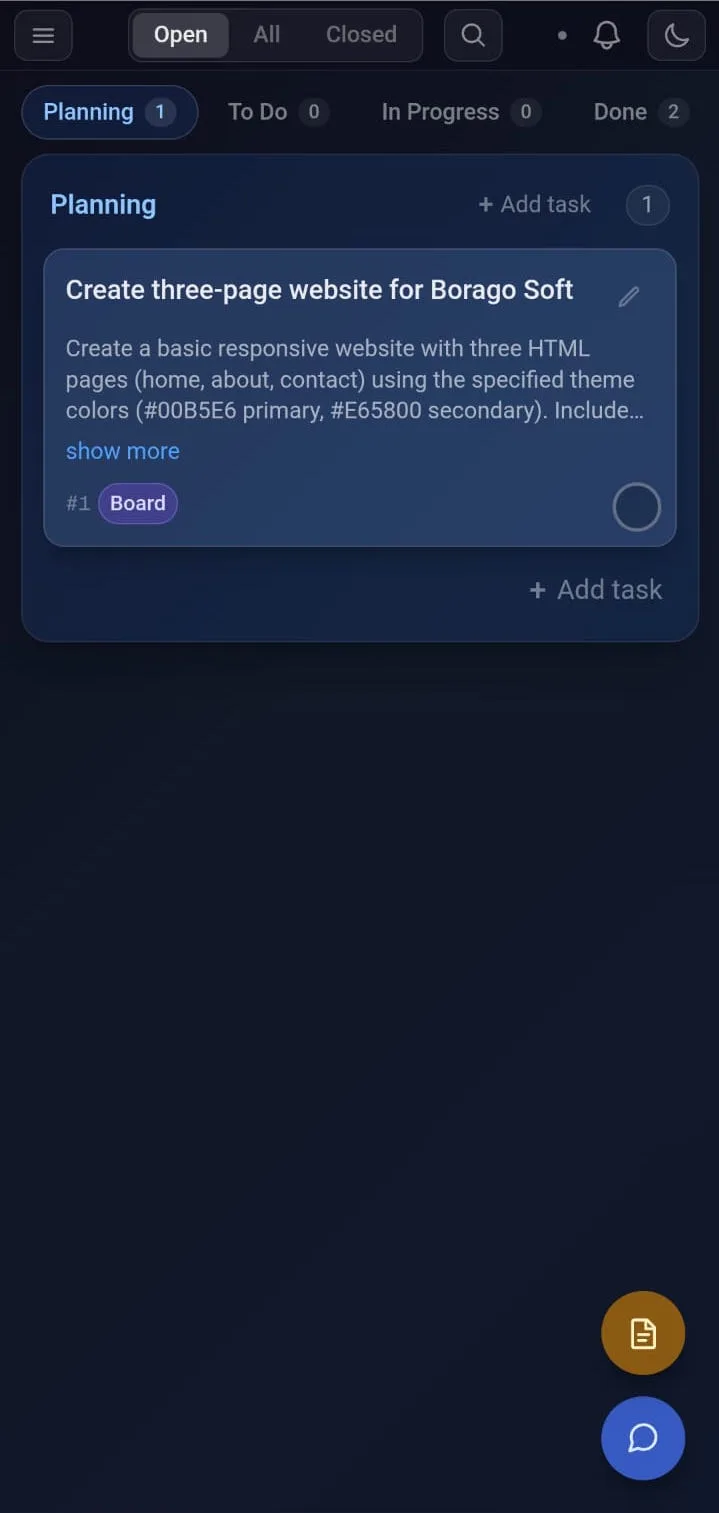
Open the board in your phone's browser. Columns become pages you swipe between. Drag a card to the rail to move it across columns.
The phone board is the same client at board.boragosoft.com, laid out for a phone: one column per page, a drop rail for cross-column moves, a project drawer, and the project controls as labelled rows.
Sign in without typing the password twice
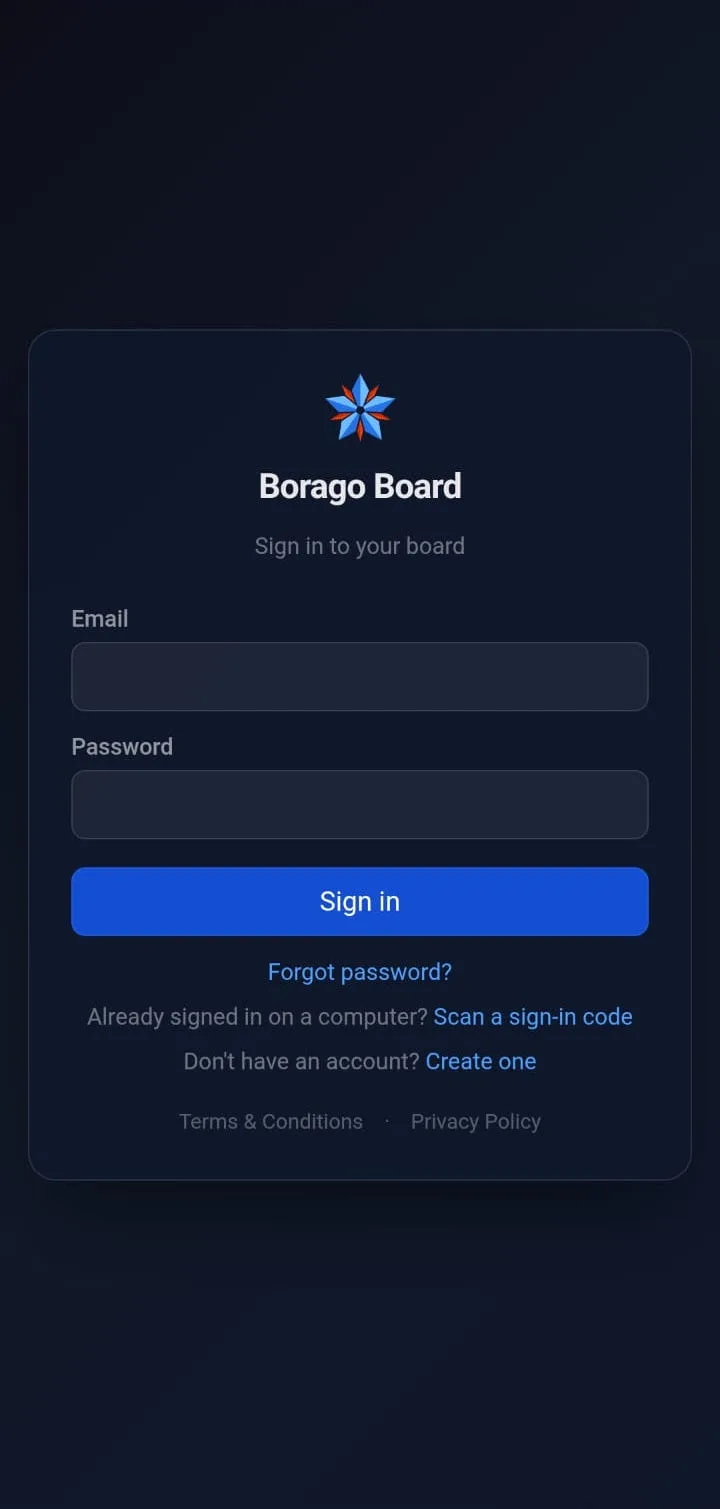
The desktop shows a short code. Approve it in a browser or phone session that is already signed in. Your password manager and two-factor authentication are inherited from that session.
The phone goes the other way. Its sign-in screen offers Scan a sign-in code, which reads a code shown by a computer that is already signed in, and that computer approves it.
How sync works
The desktop keeps the cloud copy in step with its own board. A change made on any device reaches the others within seconds while the desktop is online. Edits to different fields of one task made on two devices both survive. A deleted item is not brought back by a later edit made elsewhere. If two devices disagree about whether a task is visible, it stays visible.
Browser access on your own network
Without any account, Settings can expose the board over HTTP to your local network, so another computer or a phone on the same Wi-Fi opens the desktop's own board with the desktop doing all the work. It is login-free by design. Keep it to networks you trust. Off by default.
Plans
The desktop app is free. Cloud sync is a paid plan, Basic, Pro or Max, after a free 30-day trial of Max. Basic syncs the board. Pro and Max add files on tasks and the history of every run, with more storage on Max, which can also add storage in blocks. Pricing.
Related: Security, Cloud features.