
Home / Docs / User guides
Getting started in ten minutes
Install Borago Board, let it set up Docker, create a project with your API key, and watch your first task run to Done, using the app's own labels.
Borago Board is a free desktop app. You write a task on a Kanban board, and an AI agent does the work inside a Docker container on your machine, using an API key you bring. This guide takes you from the download to your first task in the Done column. Every step names the control you press and what you see next.
Goal
A project with a running container, and one task that the agent has finished.
Before you start
- A computer running Linux, Windows 10 or later, or macOS 15 or later. Both Apple silicon and Intel Macs are supported. See OS support.
- An API key for one provider, Claude, OpenAI, Gemini or Grok, or a model server you run yourself. The key tutorials walk through creating one. Choosing an AI provider compares them.
- A folder with some code in it, or an empty folder. A git repository address works too.
- Your administrator password. On Linux the Docker install asks for it once. On macOS and Windows the Docker Desktop installer asks its own questions.
- No account. Cloud sync is optional and comes later, see Cloud sync, browser and phone.
Steps
- Download and install. Open the download page and take the file for your system. The
.deband.rpmpackages install with your package manager and update with your system updates. The AppImage runs from any folder once you mark it executable. The Windows installer and the macOS disk image work like any other app. This step puts the app on your machine, nothing more. - Open the app and accept the agreements. The first screen is headed Welcome to Borago Board, with three tabs, Terms & Conditions, EULA and Privacy Policy. Tick I have read and accept the Terms & Conditions, EULA, and Privacy Policy. and press Accept & continue. The screen is asked once, and again only when those documents change. Decline & quit closes the app.
- Let the app set up Docker. On a machine without Docker the Set up Docker dialog opens by itself, once. On Linux press Install Docker. One administrator password prompt appears, the checklist ticks off its rows, and the last row reads Docker and gVisor installed successfully. On most systems there is no log-out and no restart. On macOS and Windows press Download and open the installer, then finish Docker Desktop's own installer. When Docker is already installed but not running, a strip at the top of the board reads Docker is installed but not running. with a Start Docker button. Every branch, and every failure, is in Installing Docker with the app.
- Create the project. On the welcome screen press Create a project. The dialog is headed Create your first project and walks through its tabs with Next. On Project Info type a Project name, then either press Browse beside Local path and pick your folder, or paste a Git repository URL. Press Next. The AI instructions tab holds a starter workflow the agent follows on every task. Leave it for now and press Next.
- Paste your API key. The AI Auth tab shows one card per provider, Claude account (Anthropic), Codex account (OpenAI), Grok account (xAI) and Gemini account (Google). The card labelled Codex is the OpenAI provider. On your provider's card tick the line that starts I confirm I am 18 years of age or older, paste the key into the API key field and press Verify. The result reads This key works. The key is stored encrypted when the project is created and is never shown again. Press Next.
- Choose what runs your tasks. On AI Roles the first row is Task runner. Pick your provider from its service list. The model list beside it can stay on Select a model, which means the provider's default. The other four roles inherit from this one. Press Next through Environment Variables, Ports, Scripts, Containers, Docker Compose and Dockerfiles, leaving each as it is. On the last tab the button reads Create project. Press it.
- Start the container. A dialog asks Start the container now? Press Start container. The dialog closes and the board's Start button carries a spinner while the first start builds the container image, which can take a few minutes. When it is up, a green dot with the tooltip Container running appears beside the project name in the project picker, and the project's container controls become Restart container, Rebuild container and Stop container. Tasks run only while the container is up.
- Write the first task. Press + Add task in the Planning column. Type a Task title and a description. Keep the first one small and say how to check it is done. Leave Review this task after saving ticked and press Add task. The card appears in Planning. Within a few seconds the review may leave a comment on it. A question holds the task until you answer it in the card's comments, and a suggested rewrite is only a suggestion. Writing tasks the agent can do has the rules that make tasks succeed. A good first task reads like this:
Add a README.md at the root of the repository. It describes what the
project is, how to install its dependencies, and how to run it. Check:
the file exists and every command in it runs without error.- Move it to To Do. Drag the card into the To Do column, or open the card and press Move to Todo. The queue picks it up. The card moves to In Progress, turns amber, shows a spinner, the name of the model running it, and a timer counting the run. One task runs at a time per project.
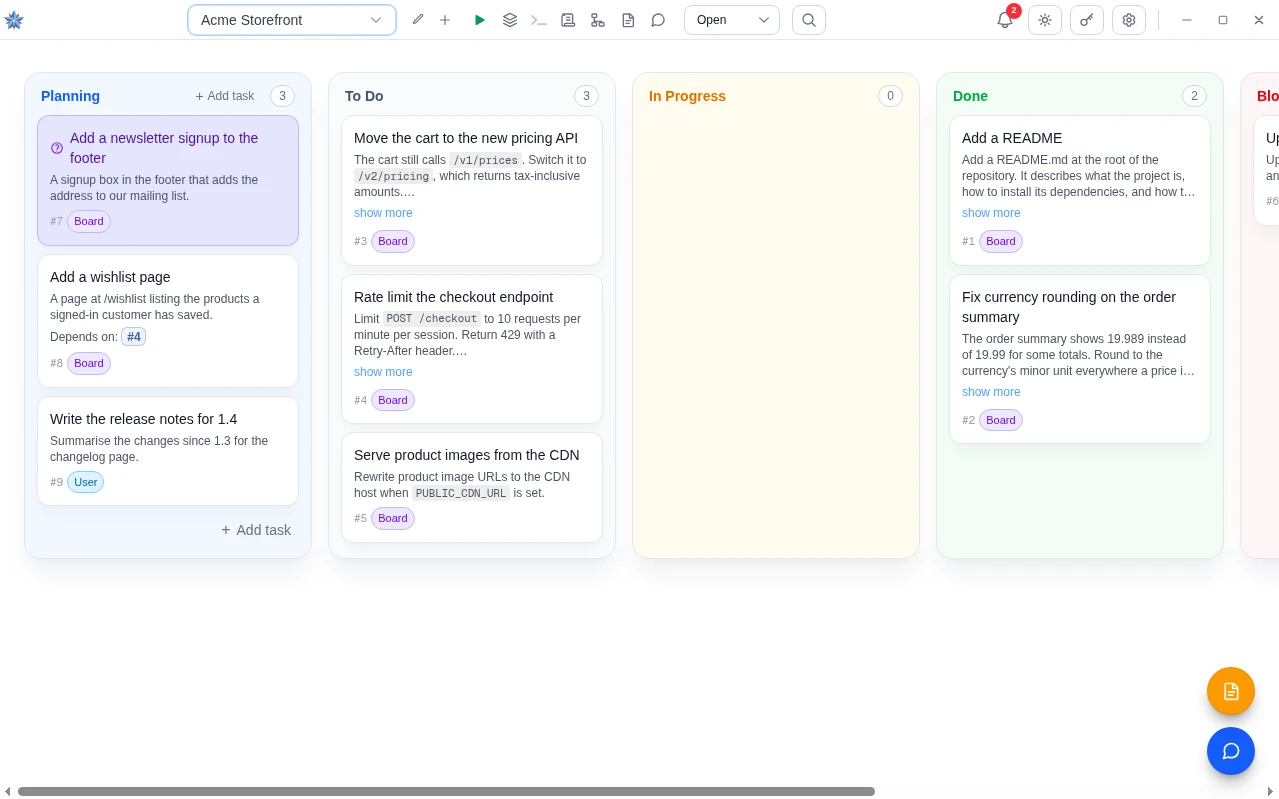
- Watch the run. Click the card. The dialog says the agent is running in the background, and a section headed with your provider's name and the word Output shows the agent's text as it works. The dialog has no tabs, so scroll for the rest. Run in Background closes the dialog without touching the run. Stop ends the run and moves the task back to Planning.
- Read the result. The card lands in Done. Open it. The agent's own summary of what it did is the newest entry under Comments. Context Summary folds out the notes it kept for later runs, Run History (1) keeps this run's full output, and the Token usage line shows the tokens and the estimated cost. A task that could not be finished lands in Blocked with the reason as a comment. A task that needs a decision from you asks in a comment and waits, with a notice in the bell at the top of the board. See When the agent asks a question or needs you.
If it did not work
- No Docker dialog appeared, and the board shows a strip saying Docker is not set up. Press Set up Docker on that strip. If Docker is installed but the app cannot see it, open Settings, then Docker, and fill in Docker path. The Docker guide covers the rest.
- Verify said the key was rejected. The key is wrong, revoked, or from a consumer plan rather than the provider's API. Create a new key on the provider's platform and paste it again. A key that verifies but has no credit blocks the first task with a comment telling you where to add credit.
- The task sits in To Do. The container is not running (press Start container), or a banner at the top of the To Do column starting Auto-run paused names the reason, or the card carries a violet question mark because a question is waiting for your answer in its comments.
- The card shows a red triangle. The run produced nothing for 5 minutes. Open the card. A banner says the task appears stuck, with a Reset to To Do button that queues it again.
Related: Installing Docker with the app, Creating a project, Choosing an AI provider, Writing tasks the agent can do, When the agent asks a question or needs you