
Home / Docs / User guides
Cloud sync, browser and phone
Create a Borago Board account, sign the desktop app in, turn on cloud sync, and open the same board in a browser and on your phone, with two-factor sign-in.
Borago Board runs on your computer and needs no account. An account adds one thing, cloud sync, which puts the same board in a browser anywhere and in your phone's browser, and lets those screens reach your desktop for the work only it can do. This guide creates the account, signs the desktop in, turns sync on, opens the board on a second screen, and closes with two-factor sign-in and a recovery email. There is no phone app in the app stores. The phone uses its browser at board.boragosoft.com.
Goal
Your board open in a browser and on your phone, edits flowing both ways, and the desktop reachable from both while it is running.
Before you start
- The desktop app installed and a project on the board, see Getting started in ten minutes.
- An email address you can read now, for the verification code.
- Cloud sync is part of a paid plan, Basic, Pro or Max. A free 30-day trial of Max starts when the account is created, with no card, and one more month of Max can be bought once for a small one-off payment that renews nothing. Plans are on the pricing page. The AI provider bills you separately for the runs, as always.
Steps
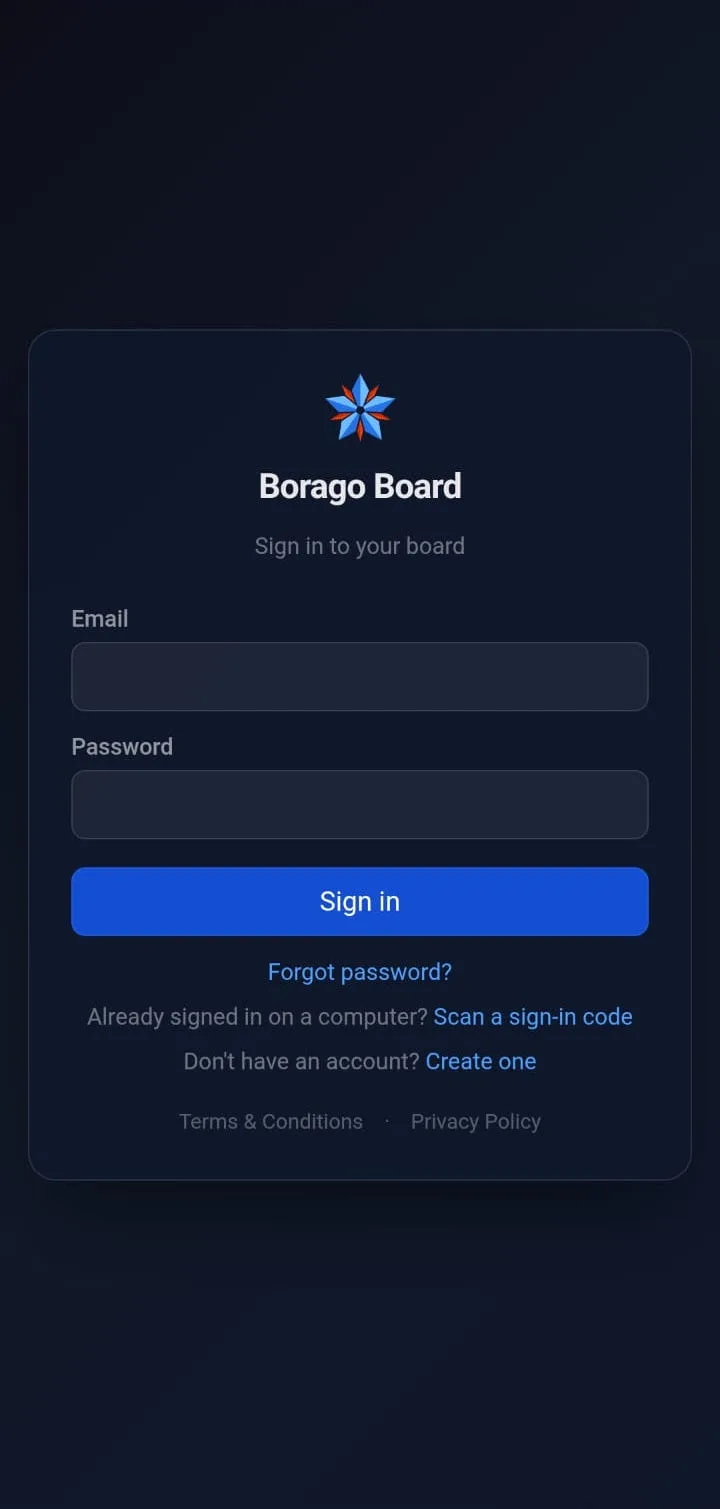
- Create the account. In a browser, open board.boragosoft.com and press Create one under the sign-in form. The website's Create free account button lands on the same screen. Enter your email and press Send verification code. Enter the six-digit code from the email and press Verify. Set an optional Name, a Password of at least 8 characters, tick I confirm I am 18 years of age or older, which links the Terms and Conditions, and press Create account. You are signed in and the trial has started. The board is empty until the desktop syncs.
- Sign the desktop app in with your password. On the desktop, open Settings from the gear in the top bar, then Account. Switch on Cloud sync. The cloud server is fixed in the build and is not shown or editable. Fields for email and password appear. Fill them and press Sign in. When the account has two-factor sign-in, a field for the authenticator code appears with a Verify button. Then press Save at the bottom of Settings. The status line reads Not connected yet - save to start syncing until you do, and Connected with the time of the last sync afterwards.
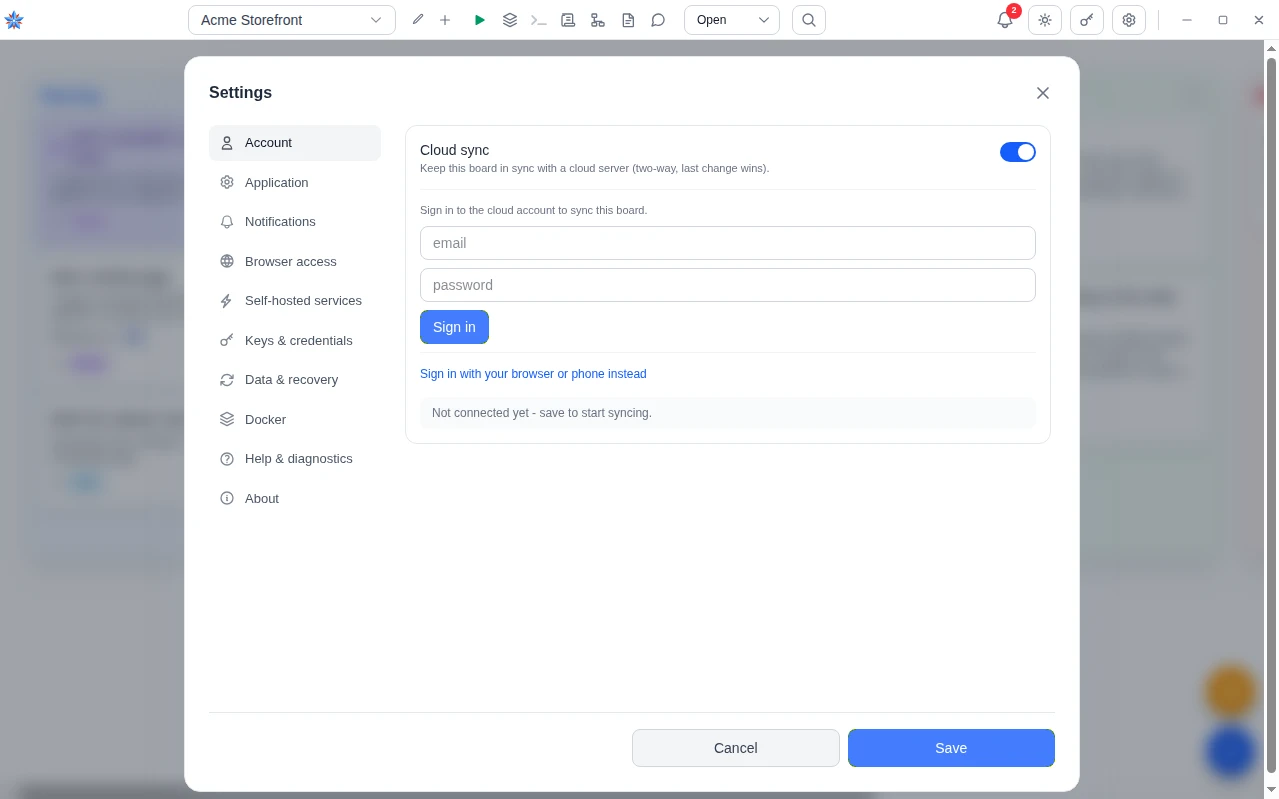
- Or sign the desktop in from a session that is already signed in. Under the sign-in fields press Sign in with your browser or phone instead. The desktop shows a short code, such as four letters, a hyphen and four digits, and a QR code, and opens your browser at the cloud board. In the browser, signed in to the account, a dialog headed Sign in your desktop app? names the computer and shows the same code big. Check the two codes match, then press Approve. On a phone, open the menu in the phone's browser board and choose Link desktop app, which scans the QR code with the camera and lands on the same dialog with the same check. Press Deny if the codes differ or you did not start this. The desktop notices within seconds and reads Signed in. The password and the second factor of the approving session are what protected this sign-in, so the desktop never saw the password. That also means synced secrets, such as saved keys and API tokens, stay locked on that desktop until you sign in there once with the password. Everything else works at once. The code is valid for a few minutes and can be used once.
- Let the first sync claim your work. Projects created before you signed in belong to no account. The first sign-in claims them for this account and pushes them up, then pulls anything the account already holds. When a local project has the same name as one the account already has, a dialog headed One project needs a new name asks you to rename the local one, because two projects cannot share one folder, and nothing is lost while it is open. From then on changes reach the cloud within seconds, and a full comparison runs whenever the desktop reconnects.
- Keep the computer awake. A signed-in desktop that goes to sleep takes its relayed board down with it. When neither keep-awake setting is on, the Cloud sync section says The computer may sleep while connected to the cloud with a Keep it awake button, which sets the Application category's switch and is saved with Save.
- Open the board in a browser. On any computer, open board.boragosoft.com and sign in with the email and password, plus the authenticator code when two-factor is on. The same projects, columns, tasks, comments, notes and chat history are there, readable and editable with the desktop off. The session lasts 30 days and renews itself while the browser is used, so a device left unused for more than half of that may need to sign in again, and one unused for the whole length always does.
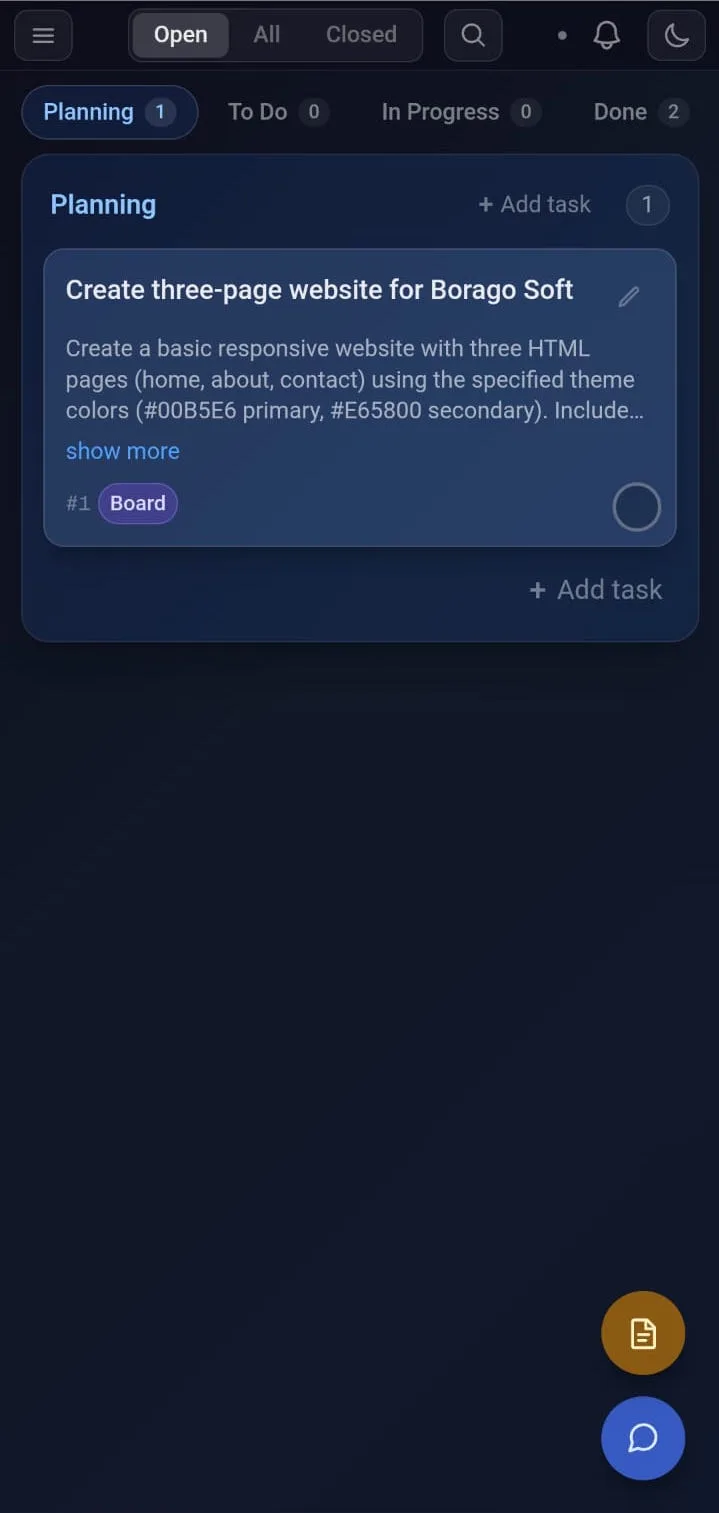
- Open it on your phone. Open the same address in the phone's browser and sign in the same way. The board is the same page, laid out for a narrow screen. The columns scroll sideways, a card opens with a tap, a press-and-hold starts a drag, and the top bar's menu holds the project controls as labelled rows, the saved keys, Link desktop app, and Settings. Cards, comments, answers to the agent's questions and notes made on the phone sync to the desktop and to any other browser.
- Know what syncs. Everything on the board syncs. That is projects with their settings, Docker files, ports, scripts and repository address, tasks with their history and run output, comments, notes, chat conversations, flows, notifications and whether you have read them, the saved keys list, the appearance and time format, and every credential as ciphertext under a key the cloud never stores. Attachments and the output of earlier runs sync on Pro, Max and the trial. On Basic they stay on the desktop, and only the newest run's output syncs. Edits to different fields of one task made on two devices both survive, and a project deleted on one device lands in the recycle bin everywhere. What never syncs is what belongs to one machine. The container itself and everything inside it, including the working directory, a clone and any tool a run installed, is rebuilt on each machine. So are the local folder path override, Docker's location, browser access, keep-awake, the desktop notifications switch, a self-hosted server's address override for this device, variables flagged Do not sync this one, restore points and the secret journal. The full table of what each project field does is Cloud sync.
- Know what needs the desktop online. The cloud runs no agent and has no Docker. Reading and editing the board, answering a question, moving cards, linking a saved key, reading notes and chat, and the bell all work with the desktop off. Starting, stopping, restarting or rebuilding a container, opening a terminal, running a script, the planning chat, setting a project secret or an environment variable, stopping a run, resuming a held queue and connecting a repository by sign-in all happen on your desktop and are relayed to it. A task moved to To Do from the phone is run by the desktop's queue when the desktop is next open with cloud sync on. Runs never happen anywhere else. A saved key or a self-hosted service key can be entered only on the desktop. The full table is on the cloud page.
- Read a control while the desktop is away. A control whose work happens on the desktop is shown on every screen and disabled when the desktop is not connected. Its tooltip reads Your desktop app is not connected. Open it (with cloud sync on) to use this. A hidden button would read as a missing feature, so nothing is hidden. Docker's state, the held-queue banners and the running containers shown in the browser are the desktop's own, relayed, and show the last known state when it is offline.
- Understand one desktop per account. An account links exactly one desktop installation. Signing in on a second desktop, by password or by code, raises Link this desktop app? with the button Log out other desktop & link this one, or in the approval dialog Sign out other desktop & approve. Confirming links the new desktop and unlinks the old one, whose local board keeps working but stops syncing and stops answering the relay. The replaced desktop gets a bell notice headed Cloud sync stopped saying another desktop is now linked, and everything changed on it while unlinked is pushed when it is signed in again there. Browser and phone sign-ins never touch the link.
- Turn on two-factor sign-in. In a browser or on the phone, open the profile menu, or the phone's menu, and choose Profile. Under Two-factor authentication press Set up. Scan the QR code with an authenticator app such as Google Authenticator, 1Password or Authy, or enter the key it shows by hand, type the six-digit code into Verification code and press Verify and enable. The dialog then reads Save your recovery codes. Each code signs you in once if the authenticator is lost, and they are not shown again, so press Copy or Download and store them, tick I have saved my recovery codes and press Done. From then on every sign-in, the desktop's included, asks for a code after the password, and a recovery code is accepted in its place. No email is sent for it. The desktop's Profile page shows the state read-only. Setting up and disabling happen in the browser or on the phone.
- Add a recovery email. On the same Profile page, under Recovery email, press Add, enter a different address than your sign-in email, enter your password, and press Send confirmation code. Enter the code sent to the new address and press Confirm. This address is the way back in when the authenticator and the recovery codes are both lost. From the sign-in screen's code step, Can't access your authenticator? sends a code to the recovery address, and confirming it schedules the removal of two-factor sign-in 24 hours later. Your primary email gets a cancel link at that moment, and simply signing in with the authenticator cancels it too. After the hold you sign in with your existing password and set up an authenticator again. The steps are walked through in Set up two-factor sign-in and test the way back in.
If it did not work
- Settings says an active subscription is required to enable sync. The trial has ended with no plan bought, or the account has no plan. View profile beside the message opens the account page in the app. Plans are on the pricing page. The desktop keeps working without sync.
- The browser board is empty or stale. Check the desktop's Settings, then Account, for the status line. Connected with a recent time means it is syncing. An error there names the cause, most often a session that expired or a password that changed, and signing in again in that section fixes it. A bell notice headed Cloud sync stopped saying another desktop is now linked means another installation took the link, and signing in again here takes it back.
- The code dialog says the sign-in code is not valid any more. It expired or was already used. Press Cancel under the code on the desktop, then Sign in with your browser or phone instead again for a fresh code, and approve it within a few minutes. When the desktop reads The request was denied, press Reset and start again.
- A control on the phone is greyed out. Its tooltip says the desktop app is not connected. Open the desktop app on the computer that runs the project, with Cloud sync on and saved, and the control enables within seconds.
Related: Getting started in ten minutes, Secrets and environment variables, The terminal, scripts and the file browser, Switching accounts on one machine, Watch and steer from your phone