
Home / Docs / User guides
Secrets and environment variables
Give a Borago Board project its database passwords, API tokens and git keys as environment variables and saved keys, encrypted, never in the task text.
The agent in Borago Board reads the task text on every turn of every run, so a password pasted into a task is a password sent to the provider with every prompt and kept in the task for ever. Credentials go in through the project instead, as environment variables or saved keys, and reach the container only at the moment a run, a shell, a script or a flow starts. This guide is how to put them in, what each of the two flags does, how to share one credential across projects, and what is and is not protected.
Goal
A project whose container has every credential it needs, with none of them in a task, a Dockerfile or a compose file.
Before you start
- A project, see Creating a project.
- The values to hand. A stored value is never shown again, so keep your own copy in a password manager.
- For anything done from the cloud browser or the phone, the desktop app open with cloud sync on, see Cloud sync, browser and phone.
Steps
- Open the Environment Variables tab. Press Edit project, the pencil in the board's filter bar or a row in the menu on a phone, and open the Environment Variables tab. The tab explains itself in one line. Values are injected into the container at run time and into the terminal, encrypted at rest, and never written to the compose file or the Dockerfile.
- Add a variable. Press + Add variable. A card appears with Name and Value boxes. Type the name in capitals, as the program inside the container expects it, and paste the value. Repeat for each one. Import opens a box where you paste a whole
.envfile, a YAML block or a JSON object, and Add variables fills rows from it. Existing names are updated. Nothing is stored until you press Save. A row with a value and no name, or two rows with one name, is refused at save with the row put in front of you.
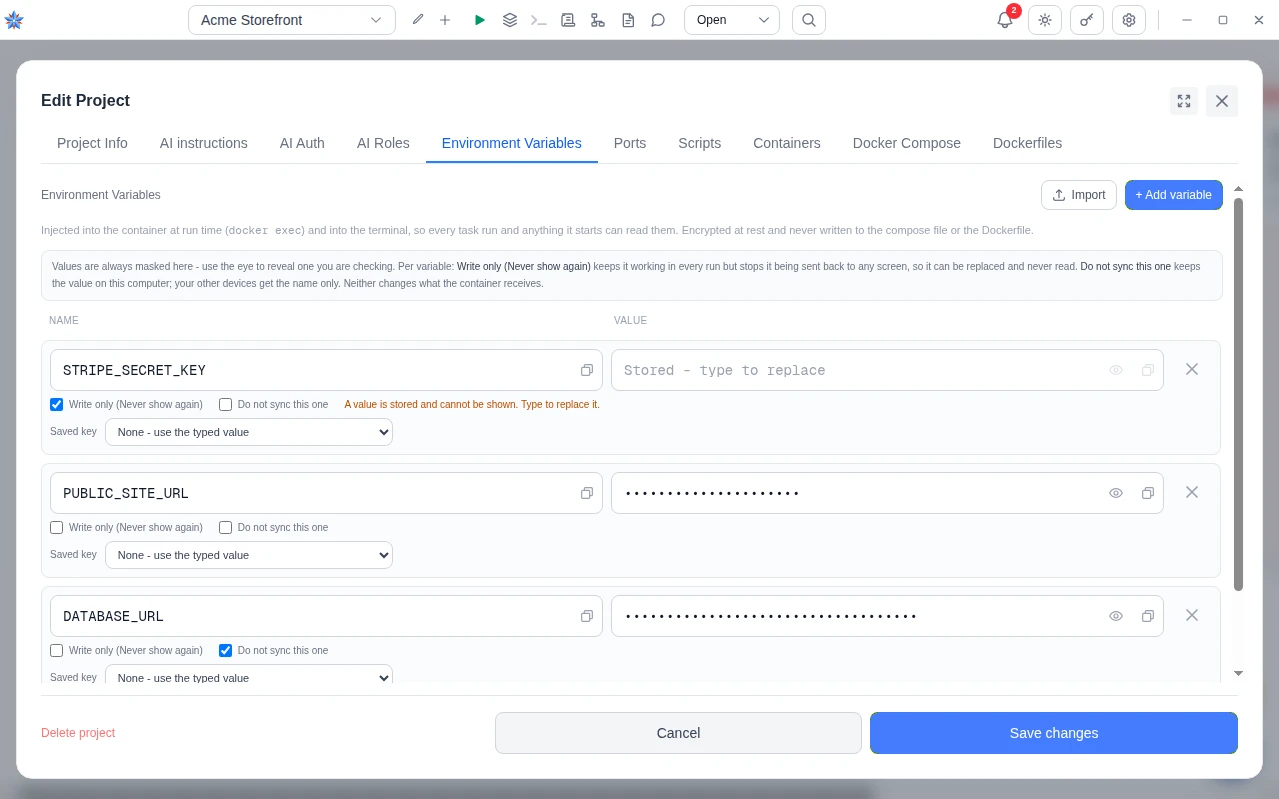
- Read the value back later, or do not. Every value is masked on screen, always. The eye button beside a value reveals that one row while the dialog is open and hides it again when the dialog closes. Copy buttons sit on the name and on the value. The masking is about what is on the screen, and it is not a setting.
- Tick Write only for a value nobody needs to read again. Each card carries the checkbox Write only (Never show again). Once saved with it ticked, the value keeps working in every run but is never sent back to any screen, this one included. The box then reads Stored - type to replace and the eye and copy buttons are disabled, because there is nothing in the box to show. Leaving the box empty on a later save keeps the stored value. Typing into it replaces the value. This is the right choice for a cloud secret key or a signing secret. It is the wrong choice for a hostname you may want to check.
- Tick Do not sync this one for a value that must stay on this computer. The second checkbox, Do not sync this one, keeps the value on this machine only. Your other devices learn the variable's name and that it is device-local, and get no value, so on a second desktop you type it again there. Under the list, Keep these variables on this device only does the same for the whole set at once. Ticking it removes the set from the cloud on save, and it stops reaching your other devices.
- Trust the container to get everything anyway. Neither flag changes what the container receives. A write-only value, a device-local value and a synced value are all injected in full. Values are never written into any file. They ride in the environment of each process the board starts inside the container, so a run and anything it starts, an interactive terminal tab and its children, a script, and a flow all see the same set. They are applied again on every start, so a restart or rebuild of the container never loses them. A process started by some other route inside the container does not see them.
- Save a credential once and link it into projects. The saved keys list belongs to the account, not to a project. Open it from the key button in the top bar, from Saved keys in the menu on a phone, or from Settings, then Keys & credentials, then Manage beside Saved keys. Press Save a new key, fill in Name, which must be unique, an optional line under What is it for, and paste the token, password or private key under Value. Press Save key. Saving a value needs the desktop app or a browser on the local network, because the value is encrypted on the desktop under a key the cloud never stores. The cloud browser and the phone can list, rename and link keys, and say so at the top of the list.
- Link a saved key to a variable or a git field. In the Environment Variables tab, a named row shows a Saved key list once the account has at least one saved key. Pick one and the typed box is disabled with From a saved key in it. The typed value still exists and returns if you press Unlink. In the Project Info tab, under Git access, Or use a saved key does the same for the repository credential. A link beats a typed value with the same name. Linking is an ordinary field write, so it works from the cloud browser and the phone with the desktop asleep. Renaming a variable moves its link. Removing the row drops it. A key deleted from the list leaves the link in place, drawn in red as This saved key no longer exists, rather than silently leaving the project without a credential.
- Give a private repository its credential. In the Project Info tab, under Git access, choose Sign in with GitLab, which creates a deploy key for one repository and fills in the URL, or Paste a token or key, which opens a box for a personal access token or an SSH private key. A token pairs with an
https://URL and an SSH key with agit@host:owner/repo.gitURL, and the dialog warns when they do not match. Under the box, Keep this key on this device only withholds it from sync. After saving, the section reads A key is stored (hidden) with a Remove button. The credential is write-only from then on. It reaches the container as environment on every run, terminal, script and flow, together with the commit name and email from the same tab, and is never left in a file inside the container. See Connecting a repository. - Set a value from the cloud browser or the phone. There the Environment Variables tab says Existing values cannot be shown here. Your stored variables are encrypted under your account's data key, which your password unlocks and the service does not store, so the list is not shown and cannot be edited as a list. Instead press + Add or replace a variable and fill KEY and Value, or tick Remove this variable instead to delete one by name. Each pair is sent to your own desktop app on its own, over the relay, and encrypted and stored there. Variables you cannot see are left exactly as they are. The desktop app must be running with cloud sync on, and the field is disabled with the reason when it is not. The git key field and the AI Auth tab's API key field travel the same way. The value passes through the cloud in memory for one hop and is not stored there.
- Know what happens when sync removes a credential. When a change synced from another device removes a git key, an API token or the variable set on this machine, the credential is deactivated at once but the old value is held here. A notice arrives in the bell naming the project and the credential. On the desktop app it carries Restore and Delete permanently. Settings, then Keys & credentials, lists the same holds under Removed credentials, still recoverable as a backstop in case the notice was cleared. Below it, Hold removed credentials for sets the window in days, 7 by default and up to 3,650, and 0 keeps a held value until you choose. Clearing a field yourself, on this machine, is not held. These two controls appear on the desktop app and the local-network browser only.
- Put back an earlier value from the journal. The desktop keeps a journal beside its database of every value each secret field has held, the last 10 per field. In the Environment Variables tab, under All variables in this project, and in the Project Info tab under the git key, a row reads how many earlier values are kept on this device. Press Show to open it. Each entry shows a preview, the variable names or a masked tail of a token, and the time it was stored, with Restore beside it. Restoring saves it as the current value again, encrypted under the key in use now, and syncs it. A small button on each entry forgets that one value, and Forget this history forgets the field's whole list, each behind a confirmation, because the journal is the last copy of a value you cannot read back. See Recovering things.
What is protected, and what is not
- Every value on this page is encrypted at rest with AES-256-GCM under your account's data key, which your password unlocks and the cloud never stores. On a desktop that is signed out, a key sealed by the operating system's credential store is used instead, and the app warns when that store is missing or weak. A copy of the cloud database cannot open these values. The mechanism is on the Security page.
- The container is the trust boundary. A credential in the container's environment is readable by any command that runs there, including every command the agent runs. That is what lets the agent use it.
- A value the agent prints is replaced by
[redacted:NAME]before the output is stored or streamed, where NAME is the variable it came from. Run output is kept on the task, sent back into the next run's prompt, and synced to the cloud as a readable row when cloud sync is on, and the replacement happens before each of those. The model itself still sees whatever a command prints during the run, a very short value is left as it is, and a value the agent transforms first, by encoding or splitting it, is not recognised. So never ask the agent to echo, print, log or paste a secret, and write tasks that say which variable to read rather than what it contains. A secret you type into a comment or a chat message is not scrubbed. The variable name is fine to write anywhere. Names are treated as not secret and they sync in the clear. - Terminal and script output is not stored by the board, but whatever you type into a terminal travels the relay when the terminal is opened from the cloud browser or the phone.
If it did not work
- The program says the variable is empty or missing. Open the project dialog and check the exact name, including case. A row linked to a saved key that reads This saved key no longer exists contributes nothing, so link it to another key or type a value. A device-local value entered on another computer has no value here, and the card says so, so enter it on this machine. A newly linked key needs no restart, and the next run, terminal tab or script gets it.
- Saving from the phone says the desktop app is not connected. Open the desktop app on the computer that runs the project, with Cloud sync on in Settings, then Account. The disabled field's tooltip reads Your desktop app is not connected. Open it (with cloud sync on) to use this. Linking a saved key needs no desktop and is the way around it for a credential you have already saved.
- A credential vanished after another device synced. Check the bell for a notice ending in removed from the project's name, and press Restore on it. If the notice is gone, open Settings, then Keys & credentials. If the hold has expired, the journal in the project dialog still lists earlier values on the machine that held them.
Related: Creating a project, Connecting a repository, Recovering things, Security, Cloud sync, browser and phone