
Home / Docs / User guides
Choosing an AI provider
Claude, OpenAI, Gemini, Grok or a self-hosted model server. Where the API key goes in Borago Board, what each provider bills, which tools its runs get.
Borago Board runs tasks on the AI you bring. That is an API key for Claude, OpenAI, Gemini or Grok, billed by the provider to you, or a model server on your own hardware, which costs nothing per run. The app itself has no AI subscription to sell and no sign-in to any provider. A Claude Pro or Max subscription, a ChatGPT plan, a Google AI Pro or Ultra plan and a SuperGrok or X Premium plan are all consumer products and none of them works here. Each provider's terms keep its consumer plan to its own apps and bill API access separately, so only an API key does. This guide says where each key goes, what each provider charges for, which tools that provider's runs get, how a self-hosted server is added, and how to cap the spend.
Goal
A working key or a working local server, chosen as the task runner, with a cost budget if you want one.
Before you start
- An account on the provider's developer platform, with billing set up there. The key tutorials show where the key is created for Claude, OpenAI, Gemini and Grok.
- Or a machine that can run a model, with Ollama, vLLM, llama.cpp or LM Studio installed. Running a local model says what hardware and which models work.
- A project, or the project dialog open on a new one, see Creating a project.
Steps
- Open the project's AI Auth tab. Press Edit project among the project's controls, then AI Auth. There is one card per provider, always all four, because a single task can override the project's provider. On a saved project the cards are headed Claude account (Anthropic), Codex account (OpenAI), Grok account (xAI) and Gemini account (Google). Codex is the app's label for the OpenAI provider.
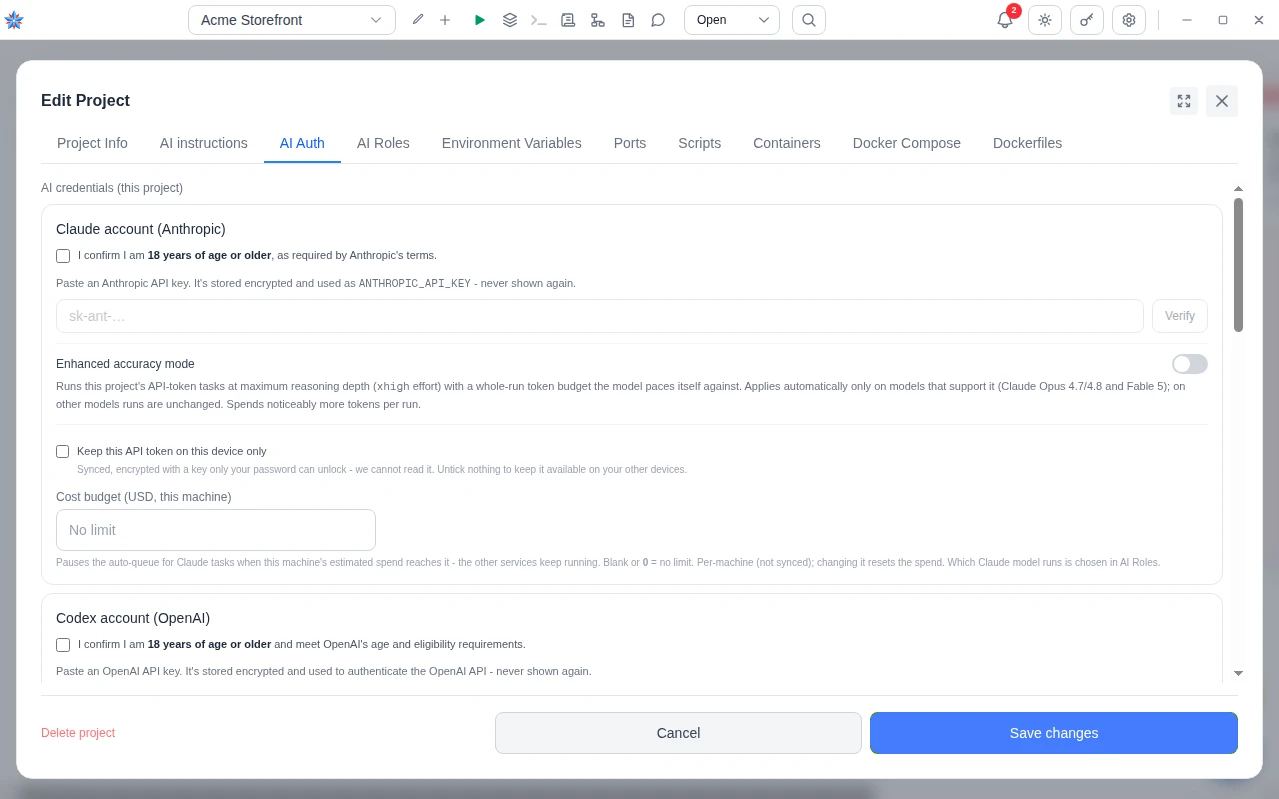
- Confirm your age and paste the key. On the card, tick the line starting I confirm I am 18 years of age or older. Each provider's line also affirms that provider's own requirements. The API key field is disabled until the box is ticked. Paste the key. It is encrypted before it is stored, is used only from the desktop to call the provider, and is never shown again.
- Verify it. Press Verify. The app lists your account's models at the provider, which is free, and reports This key works. or the provider's own error. On a saved project the card then reads API token configured with Verify, Replace and Remove.
- Save. Press Save changes. On a new project the key is stored when you press Create project. If the project saved but the key did not, the dialog reopens on this tab and says so.
- Choose it as the task runner. On the AI Roles tab, set Task runner to the service you just verified. The Model list beside it offers that provider's catalog, and Select a model means the provider's default. A service with no key on this machine carries the suffix not set up on this device.
- Optionally cap the spend. Back on AI Auth, each card has Cost budget (USD, this machine). Blank or zero means no limit. The section on the budget below says what happens when it is reached.
Hosted providers
All four run the same agent inside the project container, with a shell, a file editor and the ability to propose new tasks. They differ in price, in the models on offer, and in which extra tools the provider hosts. The tools are described on the agent capabilities page. Web search is the provider's own hosted search, capped at 8 searches per run. Page fetch reads a page by URL, capped at 5 pages per run and 20,000 tokens per page. The investigator is an investigation tool that reads the repository, up to 3 uses per run.
Claude
The card is Claude account (Anthropic). The key comes from the Anthropic Console and is used as the standard Anthropic key. Anthropic bills per input token and per output token, with cached input read at a fraction of the price, and it bills each web search separately on top of tokens. Page fetch has no separate meter. The prices are on Anthropic's pricing page. The model list is read live from your account, so a newly released model appears without an app update, and the default is Claude Opus 5. Runs get web search, page fetch and the investigator. Caching is used, so consecutive tasks on one project cost less. Enhanced accuracy mode on the card runs tasks at the highest reasoning effort on the models that accept one, at a noticeably higher token cost.
OpenAI
The card is Codex account (OpenAI), and everywhere in the app this provider is labelled Codex. The key comes from the OpenAI developer platform. A ChatGPT plan is a separate product with separate billing and gives no API access. OpenAI bills per token with cached input discounted, and bills web search as a separate tool on top. The prices are on OpenAI's API pricing page. The default model is GPT-5.3 Codex. Runs get web search and the investigator. There is no page fetch, because the API the app uses hosts none. A run that needs a specific page can still read it from the container with an ordinary command. Caching is automatic on OpenAI's side.
Gemini
The card is Gemini account (Google). The key comes from Google AI Studio, and the card's own text says that a Google AI Pro or Ultra subscription does not work here. Google bills per token, and bills grounding with Google Search per search request on top of tokens. Some models charge more above a large prompt size. The prices are on Google's Gemini API pricing page. The default model is Gemini 3.7 Flash. Runs get web search, page fetch and the investigator, with search and fetch available on the Gemini 3 generation and later. Stopping a run stops the app reading the answer. Tokens Google has already generated are still billed. Caching is automatic on Google's side.
Grok
The card is Grok account (xAI). The key comes from the xAI console. xAI bills per token, and its rate depends on the size of the prompt, with very large prompts billed higher on every component. The prices are on xAI's models page. The default model is Grok Build 0.1. Runs get the investigator only. There is no web search and no page fetch on Grok runs. Caching is automatic on xAI's side.
Self-hosted servers
Any server that speaks the OpenAI chat completions protocol works. Ollama, vLLM, llama.cpp's llama-server and LM Studio all do. No key, no cost per run, and the model's weights never leave your machine. Servers belong to the account, not to a project. Add one in Settings, then Self-hosted services.
- Press Add a self-hosted service. The editor asks for a Name, which projects refer to, and a Server address, prefilled with Ollama's usual address on this machine. API key (optional) is only for a server that requires one, and is entered on the desktop app. Press Add.
- Set the address per device if it differs. The address you saved is shared by every device on the account. When this machine reaches the server somewhere else, for example on localhost here and over the network elsewhere, press Use a different address on this device and fill Address on this device. That value is never synced. Use the shared one removes it.
- Verify it. Press Verify. The app probes the address and reports the server kind, whether the chosen model is installed, whether it makes tool calls, whether it accepts images, the context window it serves against what the model supports, and the response time. Models on this server lists what was detected, with Refresh. When a server is installed but not running, the app offers Start it. When an Ollama server lacks the model, it offers Download. When nothing is installed, it links to Ollama's installer.
- Read the context window. This is the number that matters most. A model that supports a large window is served with whatever window the server was started with, and a server that serves less cuts the prompt short without an error, so the model looks confused rather than misconfigured. Only Ollama reports what it serves. For vLLM, llama-server, LM Studio and others, type the value you started the server with into Context window (tokens). Too high is the harmful direction. Running a local model explains the setting for each server.
- Pick it in the project. On the project's AI Roles tab, every server is listed by name under Self-hosted AI services (your hardware). The Model list shows what that server has first. The project's AI Auth tab only lists the servers with an online dot and a Manage in Settings button.
What is different on a self-hosted server. There is no cost budget, because there is nothing to spend, so the ceiling is Time limit per task (min) on the service, 120 minutes by default. A run that produces nothing for 20 minutes is stopped, with 5 minutes allowed for the first token while a model loads. There is no web search, no page fetch and no investigator. A model with vision can look at attached images, and Image attachments on the service turns that off. PDFs are read as text. Tool calling on Automatic (recommended) tries real tool calls and falls back to a text protocol for models that cannot make them.
Models per role and per task
A project has five AI roles, each a service and a model, on the AI Roles tab. Task runner does the work and is the only required one. Pre-run review reads a task when it is saved and leaves questions, a suggested rewrite or a duplicate warning as comments, and it is on by default behind Review tasks before they run. Post-run review reads what changed after a run and leaves a note when the work looks incomplete, off by default behind Review the result after a run. Chat is the conversation that turns a requirement into tasks, on by default behind Plan tasks by chatting. Flows reads a flow and writes the code for its fixed steps.
The pre-run review defaults to the task runner's service with the model shown as Cheapest for this service. The other three default to the pre-run review's pair, shown as Same as the pre-run review. Changing a role's service clears its model, because model names belong to one provider. Every service is listed for every role, and one without a key on this machine says not set up on this device rather than disappearing.
A single task can override both. The task form and the task dialog carry an AI service list, whose first entry is Default followed by the project's service, and a Model override list whose first entry is Inherit - project default. A task that names a service with no key does not start, and is moved to Blocked with a comment saying which key is missing and where to add it. Moving it back to To Do retries.
The cost budget
Each provider card on AI Auth has Cost budget (USD, this machine). It pauses the project's queue for that provider's tasks when this machine's estimated spend reaches the amount. The other providers keep running, and manual runs are not gated. The spend is estimated from the tokens each run reports, priced by the model that served it, plus any web searches. It counts the reviews and chat too. The figure and the cap are per machine, are never synced, and changing the amount resets the spend. A saved project with a budget shows the spend so far beside a Reset spend button.
When the cap is reached, the To Do column shows a banner headed Auto-run paused - cost budget with a sentence naming the provider, the budget and the spend so far, and a notification lands in the bell. There is no Resume button for this hold. Press Reset spend, or change the budget, and the queue restarts by itself. The board's top bar also shows this machine's spend on the selected project as a bare amount, red with a warning when a cap is holding the queue, and clicking it opens the breakdown. Cost and usage reads every run's usage, and Set a cost budget and read every run's usage walks through it.
If it did not work
- Verify says the key was rejected. The key is invalid or revoked, or it is a consumer plan's credential rather than a platform API key. Create a new key on the provider's developer platform and paste it with Replace.
- A run was blocked saying no key is set. The task's provider has no key on this machine. Add it on AI Auth, then move the task back to To Do.
- The queue paused with API credits exhausted. The provider's account is out of credit. The banner reads Auto-run paused - API credits exhausted. Add credit at the provider, then press Resume in the To Do column.
- A self-hosted server shows Not answering. Start it, or check the address for this device. A model that answers but seems confused is nearly always being served a smaller context window than the app assumed. Verify the service and set Context window (tokens).
Related: Creating a project, Cost and usage, Running a local model, Run tasks on a local model with Ollama, Run the same task on three providers