
Home / Docs / User guides
Cost and usage
How to read what a run cost in tokens, time and estimated dollars, set a per-project cost budget that pauses the queue, and keep the AI bill down.
Borago Board runs every task on your own API key, so the bill arrives from the provider, not from us. The board records what each run used and estimates what it cost, so you can see where the money goes and stop a project before it goes further than you meant. A self-hosted model has no bill at all.
Goal
Read a run's usage, set a cost budget on a project, and choose task sizes and models that spend less.
Before you start
- A project with at least one finished run, see Getting started.
- Which provider the project uses, see Choosing an AI provider. Usage is recorded on every surface, but a budget is set on the machine that runs the tasks.
Steps
- Open a task's usage. Open the task and find the Token usage line above the comments. Collapsed, it shows the tokens in and out, the estimated cost, the number of runs and the total run time. Expand it for the cache tokens read and created, and one line per run with its date, tokens, cache reads, cost, time and the model that served it. The last 50 runs are listed and the totals cover every run ever recorded.
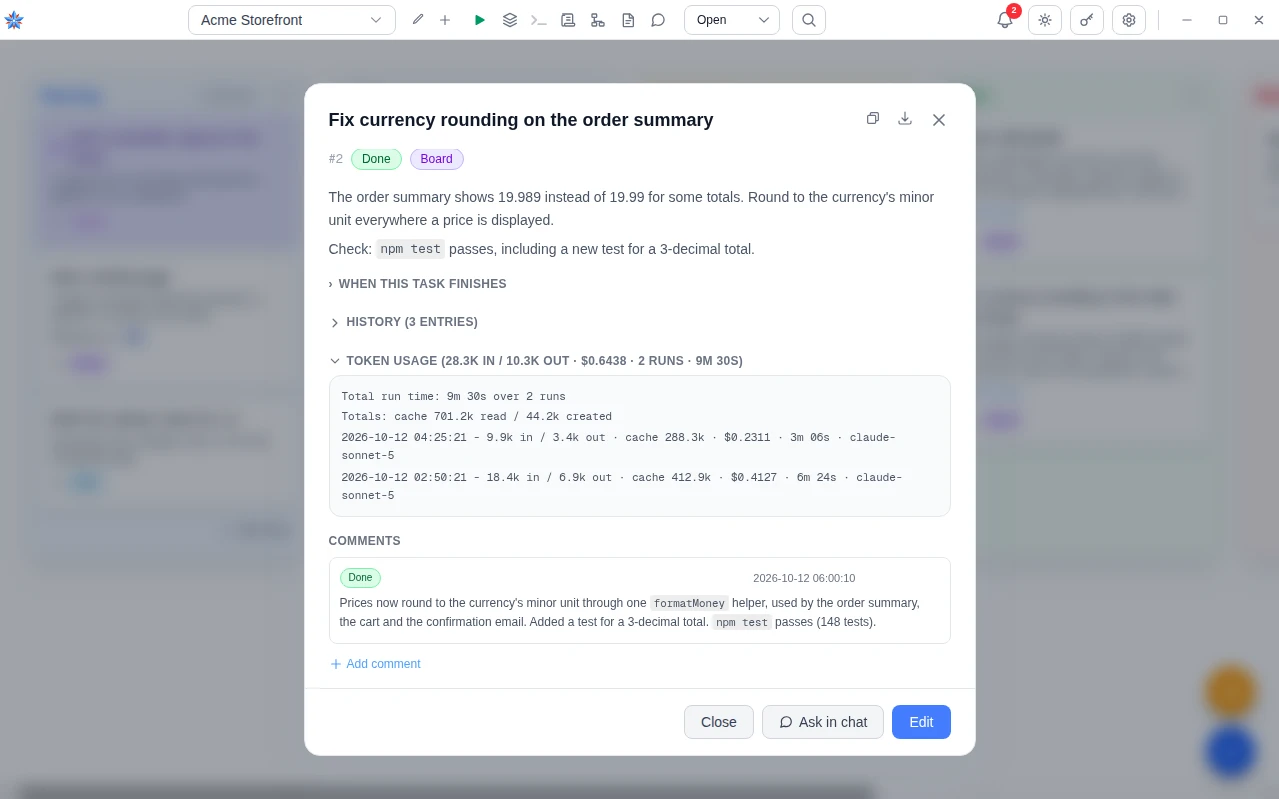
- Trust the served model, not the picker. The model on each run line is the one the provider reported, never the one the project asked for. If a provider quietly serves a different model, that line is where you find out.
- See what a run did on the web. The task's History section holds one line per run starting with Tokens, which adds the number of web searches and web fetches the provider reported. Searches are metered by Claude, OpenAI and Gemini and are included in the estimate. Fetches cost tokens only.
- Read the estimate as an estimate. The cost is worked out from the provider's published list price for the model that served the run, counting input, output, cache reads, cache writes and metered searches. The provider's invoice is the truth. Check the price tables yourself at Anthropic, OpenAI, Google and xAI. A self-hosted server records tokens and time and no cost.
- See the project's spend. With a project selected, a dollar figure sits in the top bar between the project controls and the search box, or in the menu on a phone. It is what this machine has spent on the project against its budgets, and it is hidden while it is zero. Click it to open Cost and budget. Total is what every recorded run has cost on every device, including closed tasks, broken down by service and model. Budget is this machine's spend against each service's budget.
- Set a cost budget. Open the project with Edit project, then the AI Auth tab. Each provider's card has Cost budget (USD, this machine). Blank or 0 means no limit. The budget is per provider and per machine. It never syncs, because the key and the runs live on this computer. Changing it resets the spend for that provider. Saving the same value again does not.
- Know what counts. Every run's estimate is added to its provider's spend, and so is every helper call the project makes, such as a task review, a chat turn or a flow. A budget that ignored those would not be a budget.
- Understand the pause. When a provider's spend reaches its budget, the queue starts no more tasks for that provider. The To Do column shows Auto-run paused - cost budget, the top bar figure turns red with a warning icon, and a notification is raised once. Other providers on the same project keep running. You can still run a task yourself from its dialog.
- Resume. Open Edit project, then AI Auth. The card shows Spent with the running total against the budget and a Reset spend button. Press it and the queue starts again. Raising the budget to a new value also resets the spend.
Spending less
- Size tasks for the model. There is no session resume. Every task starts from nothing and pays to read the code again, so ten small tasks pay that ten times, while a failed run throws the whole run away and retries it. When chat proposes tasks it sizes them for the model that will run them and says so, with Fewer, bigger and More, smaller to re-ask. See Chat to tasks.
- Route small work to a cheaper model. In the task form, the AI service and Model override pickers set one task's service and model, with Inherit - project default as the normal choice. A chat proposal can carry a model chosen for that one task, shown on the row when it differs from the project default, with a link back to the default.
- Choose per role. The AI Roles tab sets a service and model for each of the five roles, Task runner, Pre-run review, Post-run review, Chat and Flows. A review reads a task and costs a small fraction of a run, so a cheap model suits it. See Writing tasks the agent can do.
- Run on your own hardware. A self-hosted server costs nothing per run. Time is the only price, and the board records it. See Local models.
If it did not work
- The figure in the top bar is missing. It is hidden while this machine's spend is zero and no budget is holding the queue. Open a task to see its own usage instead.
- The spend did not reset when I saved. Saving the same budget again keeps the total. Press Reset spend, or enter a different value.
- A run shows no cost. The provider did not report a price the board can use, or the run was on a self-hosted server. Tokens and time are still recorded.
Related: Choosing an AI provider, Chat to tasks, Set a cost budget and read every run's usage, The queue and its holds, Limits and defaults