
Home / Docs / User guides
Creating a project
Create a Borago Board project from a folder or a git URL, choose its base image, ports, startup script and AI key, and get its container started.
A project in Borago Board is one folder or repository with its own container, its own AI credentials and its own queue of tasks. The project dialog creates it as a wizard, one tab at a time, and the same dialog edits it later. This guide walks the tabs in the order they appear, says what each field does, and ends with the container running. The complete field-by-field list, with defaults and what syncs, is the Project settings reference.
Goal
A project whose container starts, ready for its first task.
Before you start
- Docker running, see Installing Docker with the app.
- Either a folder on this machine, or a git repository address. A private repository also needs a token, an SSH key, or a GitLab sign-in, see Connecting a repository.
- An API key for the provider that will run the tasks, or a self-hosted model server already added in Settings, see Choosing an AI provider.
- Which port your app listens on, if it serves anything. Many projects need no port at all.
Steps
- Open the dialog. Press Add project in the board's filter bar (in the menu on a phone). On a board with no project yet, the welcome screen's Create a project button opens the same dialog, headed Create your first project. Creating walks the tabs in order. Next checks the tab you are leaving and moves on, Previous goes back without checks, and a tab you have reached stays clickable. Nothing is created until the last tab, where Next becomes Create project.
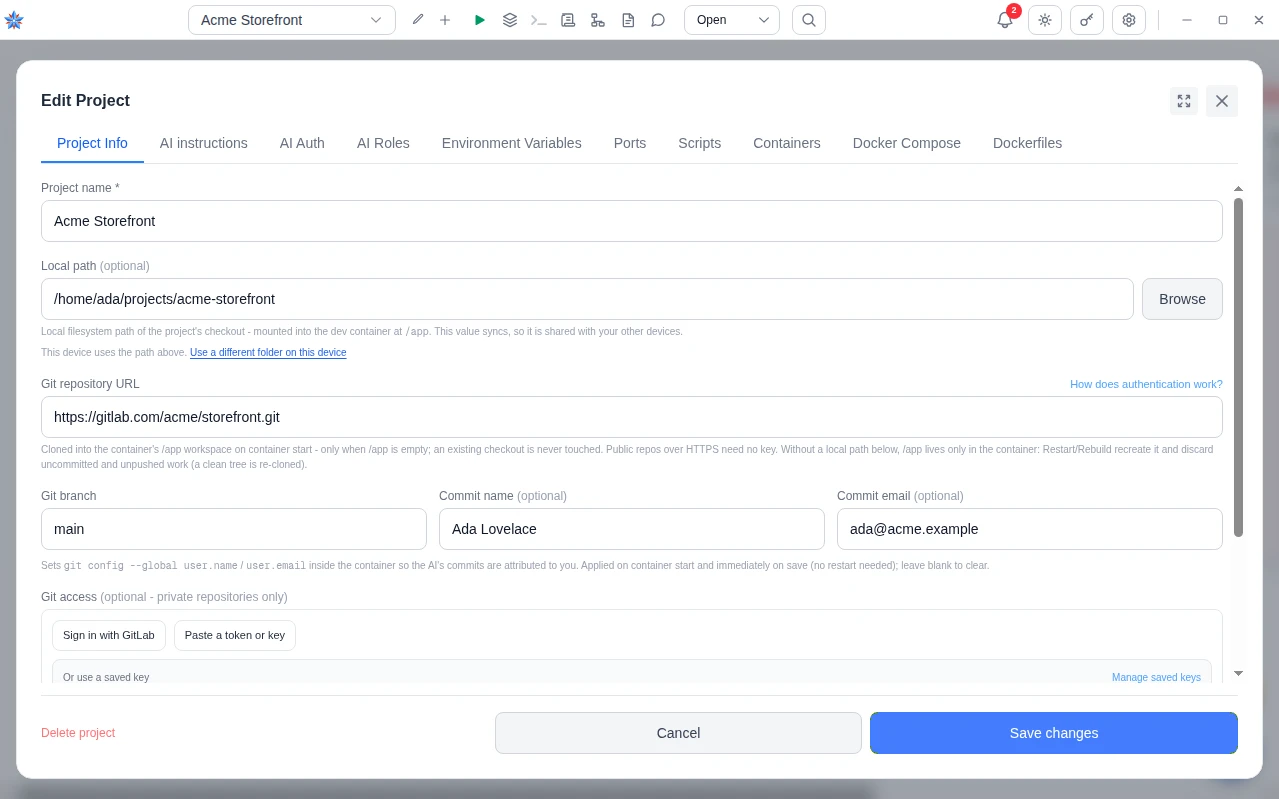
- Project Info, the name and where the code lives. Type a Project name. It names the container too, so it is required. Then choose one of two homes for the code, or both. Local path is a folder on this machine, mounted into the container as its working directory, and, in the desktop app, Browse opens the system folder dialog, which can create a new folder. A browser or the phone has no Browse, so the path is typed there. Git repository URL is cloned into the container on its first start, only when the working directory is empty, so an existing checkout is never touched. Beside it are Git branch and the Commit name and Commit email the agent's commits carry. Git access is for private repositories only. It offers Sign in with GitLab, Paste a token or key and Or use a saved key. There is no GitHub sign-in, so GitHub users paste a token or a key. A public repository over HTTPS needs none of this. With a git URL and no local path, the code exists only inside the container, and a later restart or rebuild discards uncommitted and unpushed work. At the bottom, Container memory limit stays on Automatic, which derives a cap from the RAM of the machine running the container. Press Next.
- AI instructions, the rules for every run. Global AI instructions is prefilled with a starter workflow, branching per feature when a git URL is set, and is sent with every task. Review instructions goes only to the two reviews, never to the task runner. Leave both for now, or read Writing tasks the agent can do for what belongs here. Press Next.
- AI Auth, the key. One card per provider, Claude account (Anthropic), Codex account (OpenAI), Grok account (xAI) and Gemini account (Google). Codex is the app's name for the OpenAI provider. On the card you use, tick the line starting I confirm I am 18 years of age or older, paste the key into API key, and press Verify to see This key works. The key is stored, encrypted, when you press Create project, and the field says so. Each card also carries Cost budget (USD, this machine), which you can leave on No limit. Self-hosted servers are listed lower down with a Manage in Settings button, because they belong to the account, not to one project. Press Next.
- AI Roles, who does what. Task runner is required and nothing is preselected. Pick the service you just gave a key to, or a self-hosted server by name under Self-hosted AI services (your hardware). The Model list can stay on Select a model for the provider's default. A service with no key on this machine is listed with the suffix not set up on this device. The other roles, Pre-run review, Post-run review, Chat and Flows, inherit from this one and are explained in Choosing an AI provider. Press Next.
- Environment Variables, values the container will see. Skip this the first time. When you need them, + Add variable adds a row, and every value is injected at run time and never written into any Docker file. See Secrets and environment variables. Press Next.
- Ports, reaching the app in the container. With no rows the container is isolated, which is fine for a library or a script. Otherwise press + Add port and fill Host, the port you will open in a browser on this machine, and Container, the port the server listens on inside. The first row starts blank. Each row you add after it proposes the previous host port plus one, as a starting value only. Press Check on a row to confirm the host port is free: no other project on this board publishes it, even a stopped one, and this machine can bind it right now. A free port reads Host port free. A clash names the project holding the port, or says something else on this machine is already listening. From the cloud browser or a phone only other projects' claims can be checked, because the machine that binds ports is your desktop. Every filled row is checked again when you leave the tab and when you save, and a clash lands on the row. Expose to LAN publishes the port on every network interface instead of this machine only, see Ports and LAN access. Press Next.
- Scripts, the startup script. A new project has no scripts, and the empty tab offers Add startup script. It creates a script named Startup with its Trigger set to Startup, which runs inside the project container after every start and after any git clone. Put installs, migrations and seeds in it. A script with the Manual trigger runs only from the Scripts button in the board's top bar. A project holds up to 25 scripts of up to 20,000 characters each. See The terminal, scripts and the file browser. Press Next.
- Containers, the image the container is built from. Dev container name stays on Auto-generated, which derives the name from the project name. Custom points the project at a container you run yourself, and hides the Ports, Docker Compose and Dockerfiles tabs. Base image is the system inside the container, one of Ubuntu 26.04 LTS (default), Ubuntu 24.04 LTS and Debian 13 (trixie). Container CPU architecture stays on its default, which builds for whichever machine runs the container. Force one only for a dependency that exists for a single architecture, see Change the base image or pin an architecture. Allow this container to manage Docker containers is off and stays off unless the agent needs to run a database beside the project, see Container management. Press Next.
- Docker Compose and Dockerfiles, the generated files. Both tabs show a live preview generated from what you have filled in. Leave them alone the first time. Editing either stores your text as it is, and Generate Docker Boilerplate returns to the preview. Press Next on Docker Compose, and on Dockerfiles press Create project.
- Fix what the check refuses. Create project checks every tab. A refused save writes the reason in the footer, switches to the tab the problem is on, scrolls to the field and puts the cursor in it. The rules are a project name, a task runner service, no environment variable with a value and no name or with a duplicate name, a port row with both sides filled and in range and no host port used twice, a custom container name when the mode is Custom, an 18+ tick beside any key you typed, and a named server when a role is set to self-hosted and the account has more than one. A port clash from the check is refused the same way.
- Start the container. The dialog asks Start the container now? and explains that the first start builds the image, which can take a few minutes. Press Start container to start it in the background, or Not now to leave it stopped. Both close the dialog. On the board, the project's Start button carries a spinner until the container is up. Then a green dot with the tooltip Container running appears beside the project name in the project picker, and the project's container controls become Restart container, Rebuild container and Stop container. The Terminal button becomes usable. After the start, the repository is cloned if a URL was given, and startup scripts run in order.
If it did not work
- The container did not start. A notification arrives in the bell at the top of the board, titled with the project's name, saying it could not start the container. Its message names the cause, and opening it takes you to the project dialog on the tab that holds the fix. A host port already in use opens Ports. Docker not reachable opens Containers, and the fix is Start Docker on the board's strip. A container with the same name already existing opens Containers. A mounted folder that does not exist on this machine opens Project Info, on Local path, or Docker Compose when your own compose file names the folder. An image that failed to build opens Dockerfiles, with the last error line quoted. A dependency built for the wrong CPU architecture opens Containers, on the architecture field. Anything else opens Containers with Docker's last line. When the container started but the repository could not be cloned, the notification says so and opens Project Info. The container stays up.
- Browse opened nothing on Linux. Some desktops, Ubuntu 24.04 GNOME among them, have a file dialog portal with no backend, which fails silently. The app notices, falls back to another system chooser, then to its own picker headed Choose a directory, with New folder here and Select this directory and a notice explaining why. Installing the portal backend for your desktop, or zenity, brings the system dialog back.
- Saving asked to restart or rebuild. After editing a project whose container is running, a change that needs the container recreated raises Restart the container? or Rebuild the container? with Later beside it. A base image or Dockerfile change needs a rebuild. A name, path, port, compose or connected-project change needs a restart. Environment variables need neither. When the code lives only inside the container, the prompt warns that recreating it discards uncommitted and unpushed work.
Related: Getting started in ten minutes, Project settings reference, Choosing an AI provider, Connecting a repository, Ports and LAN access