
Home / Docs / User guides
Dictation
How to dictate into the chat composer and notes in the desktop app, where speech to text runs on your own computer and nothing is sent until you press Enter.
Borago Board can type what you say into the chat composer and into a note. Speech to text runs on your own computer, so your voice never leaves it, and the words land in the text box for you to read before you send them. It is a way to type, not a voice assistant. There is no wake word, no spoken reply and no conversation by voice.
Goal
Speak a message into the chat, read what was heard, and send it yourself.
Before you start
- The desktop app, on a computer with a microphone. Dictation is in the desktop app on macOS, Windows and Linux, on both Intel/AMD (x64) and ARM (arm64) processors.
- The chat open for a project, see Chat to tasks, or a note open. The microphone is in the chat composer and in the note editor. Task descriptions and comments have no dictation control.
- About 44 MB of free disk for the speech model, downloaded once.
Steps
- Find the microphone. Open the chat. The Dictate a message button is in the bottom left corner of the composer, the far corner from Send, because it changes the text rather than sending it.
- Download the model once. The first press opens a small panel that says voice input needs a one-time download, gives the size, and says it runs on this device so your voice is never sent anywhere. Press Download, or Not now to leave it. The panel shows the progress as a percentage and says you can keep working. This happens once.
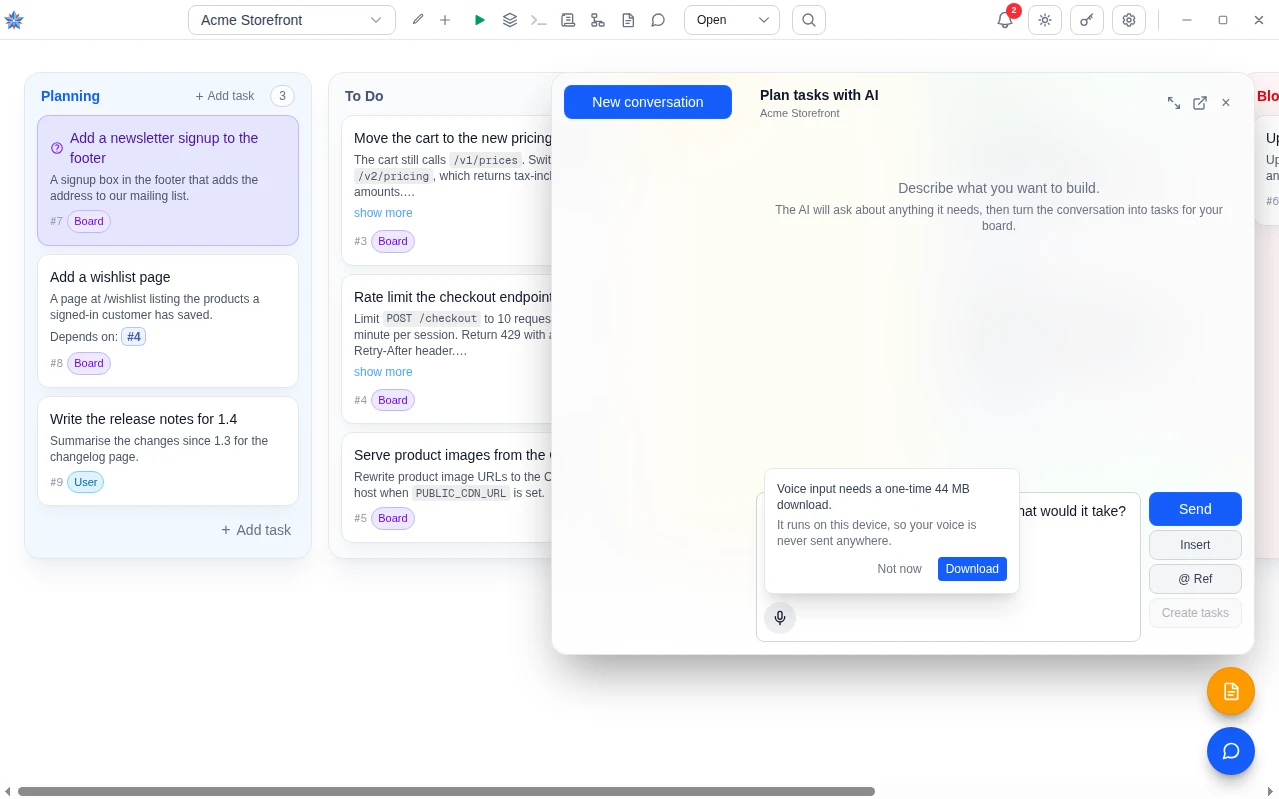
- Allow the microphone. The first recording asks for microphone access. On macOS the operating system asks once for Borago Board. If access is blocked, the panel says so and asks you to allow it for this app and try again.
- Speak, then stop. Press the button and the microphone moves to the middle of the composer, with Listening. Click the mic to finish. under it. A glow around it grows with your voice, so you can see sound is arriving. Speak, then click the microphone to stop listening. A recording can be up to 2 minutes long. At that point it stops by itself and everything you said is turned into text. A spinner shows while the recording is turned into text, then the microphone returns to its corner. The text is inserted at the cursor in the composer, with punctuation and sentence case, and anything you had typed stays.
- Read it, then send it. Nothing is sent by dictating. Read what was heard, fix a word if you need to, and press Enter to send, as with a typed message. Shift and Enter adds a line instead. A misheard word is a typo to correct, never a task created by mistake.
Where it works and where it does not
- Desktop app. Yes, on the platforms above.
- A browser on the same computer opened at the desktop's localhost address, see Browser access on your network. Yes.
- A browser on another device on your network. No. The board is served over plain HTTP there, and a browser allows the microphone only on a secure page.
- The cloud board and the phone. No. The cloud service has no speech component, and audio is never relayed to your desktop. A phone keyboard's own dictation key types into the composer as into any text field.
In a note the microphone stays in its corner while it listens, and the text lands at the cursor in the same way.
The model is English only. Sounds that are not speech, such as music, are left out of the text. It runs on the processor, and after a few minutes of not being used it is unloaded and reloads on the next press.
If it did not work
- There is no microphone button. The page is not the desktop app or its localhost address, or the app is older than the release that brought dictation to your platform. Update the app and look again.
- The panel says microphone access was blocked. Allow the microphone for Borago Board in the operating system's privacy settings, or for the site in the browser, then press the button again.
- The panel says no microphone was found. Connect or enable a microphone, then try again.
- The download did not finish. Press the button again to be offered the download once more. The model files are fetched one by one and checked before use.
Related: Chat to tasks, Browser access on your network, Keyboard and mouse, Accessibility