
Home / Docs / User guides
Chat to tasks
How to plan a feature in the chat panel, let it read the repository with a mention, and approve the tasks it proposes. Nothing is created without you.
A run in Borago Board has no session resume, so a vague task discovers its gaps mid-run and pays twice. Chat moves that discovery earlier. You talk a requirement through with a model, and when the shape is clear it proposes tasks. You edit them, tick the ones you want, and it creates only those.
Goal
A feature worked out in conversation and turned into approved cards in the Planning column.
Before you start
- A project with a working provider, see Choosing an AI provider.
- The project's container started, if you want the chat to read the repository.
- From a browser or a phone, cloud sync on and the desktop app open, see Cloud sync, browser and phone.
Steps
- Open the chat. Press the round button at the bottom right of the board, or the toolbar button whose tooltip reads Plan tasks with AI. A panel with that heading docks in the corner. The board stays visible and clickable, and a click on it does not close the panel. Only Close, Escape or the round button does. Your draft and the open conversation come back when you reopen it.
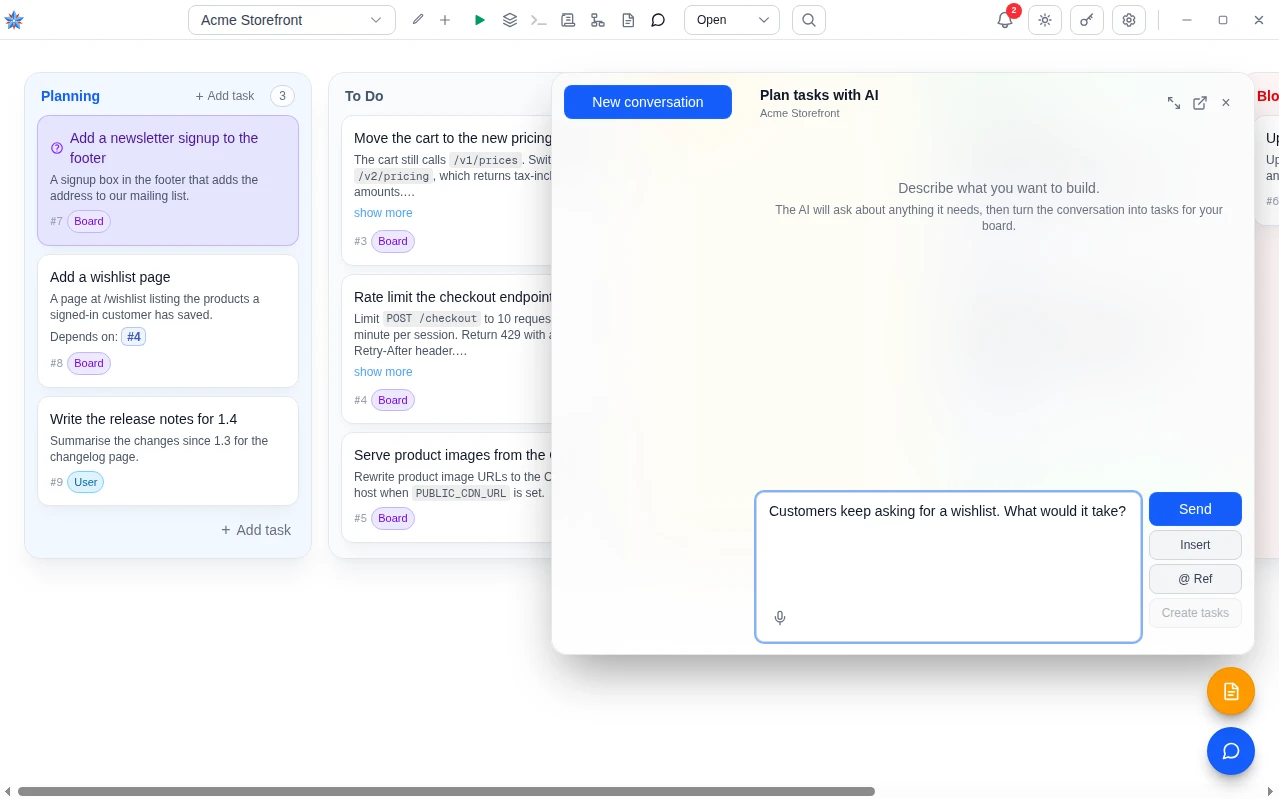
- Describe what you want. Type in the box and press Enter to send. Shift+Enter adds a line. A Thinking line shows while the model replies. While a reply is in flight Send becomes Stop, which ends the model call and hands your message back.
- Let it read the repository. Type
@/and the chat may search, read and list files in the project's container for the whole conversation, through read-only tools, within a bounded budget per message.@/src/auth.tssays where to start.@/src/with a trailing slash lists a folder by name. A path is a hint, never a fence. Deleting the mention removes the grant. Without one, nothing is read and nothing is spent on reading. The container must be running. - Point at other things. Type
@and a picker headed Tasks, areas and files opens. A task inserts@#12with its title, which gives the chat that task's text and latest summary.@~3points at a note,@:authat a named knowledge area,@=5at an earlier conversation. The conversation mention is chat only. The Insert button opens Insert a reference, with a Conversation tab and a File or folder tab that browses the container, offering Insert this folder or, at the root, Insert the whole project. That browser works in the desktop app and a browser on your local network, not from the cloud, though a typed@/pathstill works there because the whole turn runs on the desktop. - Ask for tasks. Press Create tasks. A Working out the tasks line shows, then a list headed with the count, for example 3 tasks proposed. Edit or deselect before creating. If the conversation is not concrete enough it says Nothing concrete to create yet. Keep talking it through. At most 8 tasks are proposed at once. A line above the list says which model the sizing was done for and what it aimed at, such as few, large tasks. Fewer, bigger and More, smaller re-ask at a different grain, each for another model call.
- Read the model chosen per task. A row the chat judged light or deep shows a model chip, chosen for this task, and a link, Use the project default. A row with no chip runs on the project default.
- Approve a subset. Untick what you do not want and edit the rest in place. Press Create N tasks, where N is the number ticked, or Keep talking. The tasks are created exactly as shown, owned by the board, in Planning. Nothing reaches the board until you press that button.
- See the declared order. When one task must follow another, the created task ends with Depends on: and a mention such as
@#14. It renders as a chip and is an ordinary prerequisite. The task does not start until the mentioned task is Done. Delete the line to remove the order. - Know what it costs. Every turn, every proposal and every repository-reading round is priced at the model set for the Chat role and recorded against the project. Set it in Edit project, then AI Roles, under the checkbox Plan tasks by chatting. The picker offers Same as the pre-run review to inherit. Chat spend counts toward the project's cost budget, and a reached budget holds the queue, see Cost and usage. Unticking the checkbox hides both chat buttons for that project on every device.
- Move the panel. Drag it by its header. Maximise centres it over a dimmed board. Restore to the corner docks it. Detach into its own window opens the conversation in a second window that stays on top, and closing that window puts the panel back. On a phone the panel is fullscreen.
- Chat from a browser or phone. Reading and deleting conversations works with the desktop asleep, because conversations sync. Sending, asking for tasks and creating them run on your desktop, so the desktop app must be open with cloud sync on. Otherwise the request answers Your desktop app is not connected. Open it (with cloud sync on) to chat about this project.
If it did not work
- The chat buttons are missing. Select a project first. Both are hidden while Plan tasks by chatting is unticked, and on the cloud browser they are disabled until the desktop app is connected.
- The reply says the model took too long. A turn that overruns its time limit is not saved, and your text is handed back. Send it again, or start a New conversation. A long conversation is re-sent whole on every turn.
- A file mention was ignored. A mention must follow a space or start the line.
see@/src/app.tsmatches nothing. Check the container is running and the path is inside the project. A path with..or a URL is dropped.
Related: Writing tasks the agent can do, Plan a feature with chat, then run the cards, Cost and usage, The terminal, scripts and the file browser, Cloud sync, browser and phone