
Home / Docs / User guides
Keyboard and mouse
What the keyboard, the right-click menu, dragging and touch gestures do on the board, in the terminal and in text fields, with the mention picker keys.
Borago Board is used mostly with a mouse or a finger, and a few keys and gestures do more than they look. This page lists the ones the app defines. Where a shortcut says Ctrl, it is Cmd on a Mac. Everything here works the same in the desktop app, in a browser on your network and on the cloud board unless a row says otherwise.
Goal
Know which key, click or gesture does what, so nothing on the board has to be discovered by accident.
Before you start
- Any board. Nothing on this page needs a setting.
- For the terminal rows, an open container terminal, see The terminal, scripts and the file browser.
Dialogs
| Key or action | What it does |
|---|---|
| Enter in a single-line field of a form | Submits the form. In a multi-line field it adds a line. The commit button is always the rightmost one, so Enter never discards. |
| Enter in a typed confirmation | Confirms once the required text matches. |
| Escape in a dialog | Closes it. In a confirmation it is Cancel, and a confirmation that is open owns Escape, so one press never closes the dialog underneath it. |
| Escape while editing a task | Asks Discard your changes? with Keep editing and Discard. |
| Closing a task with unsaved work | Every way out, the close button, Escape and the backdrop, asks Unsaved changes with Keep editing, Save and close and Discard. An unsaved comment draft counts as unsaved work. |
| Tab | Moves through controls in reading order. Cancel comes before the commit button. |
Right-click menu
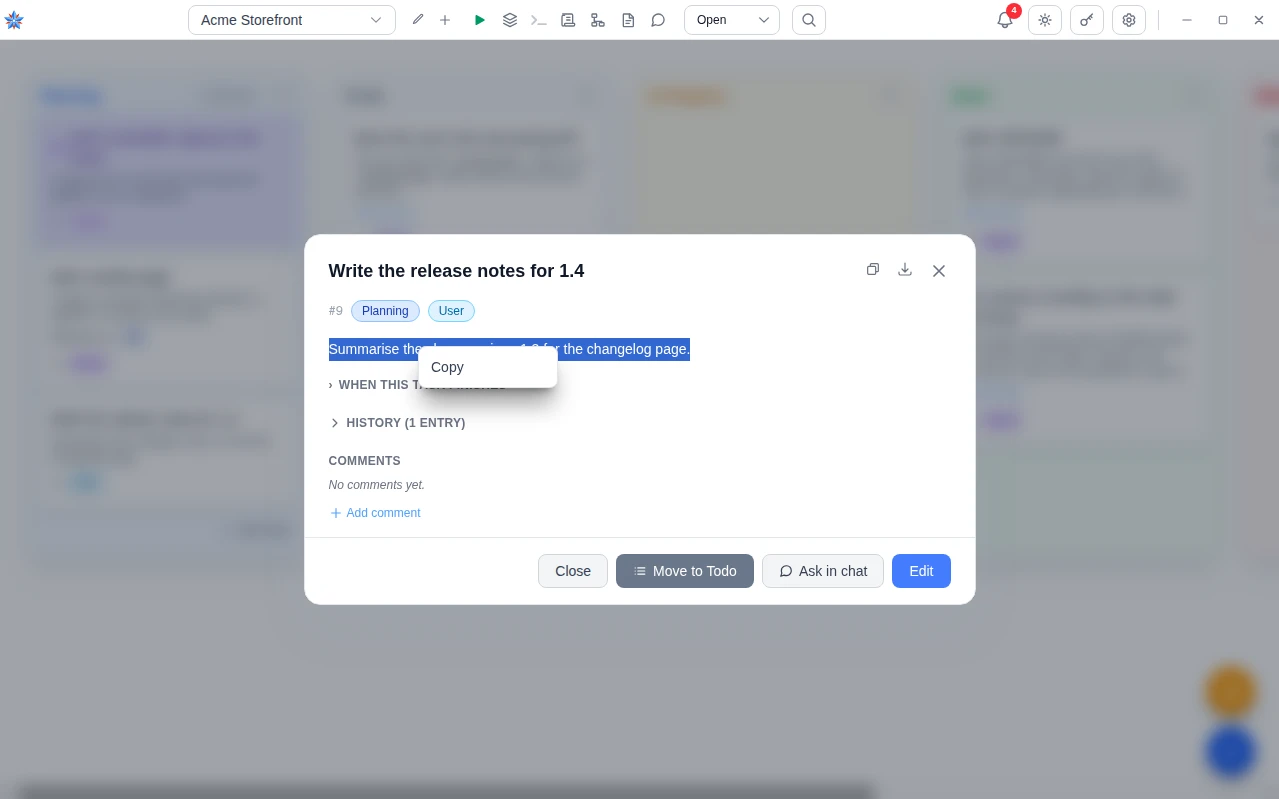
The app draws its own right-click menu wherever there is something to act on. On a phone the platform's own selection bar is used instead, except in the terminal.
| Where | Items |
|---|---|
| Selected text anywhere | Copy |
| A text field | Cut when text is selected, Paste, Select All. On the desktop, a misspelled word also lists up to five suggestions. |
| The terminal | Paste, Select All, and Open Link when the pointer is on a link. |
| An attachment thumbnail | Copy Image, Save Image |
| The window title bar in the desktop app | The window menu, not this one. |
The terminal
| Key or action | What it does |
|---|---|
| Ctrl+Shift+C | Copies the selection. Plain Ctrl+C is sent to the shell as an interrupt, as in any terminal. |
| Ctrl+Shift+V | Pastes. A multi-line paste arrives as one paste, not as a run of Enter presses. |
| Drag with the mouse | Selects text. |
| Ctrl+click on a link | Opens it in your default browser. A plain click never opens a link. Links include both real hyperlinks and plain web addresses in the output. |
Cards and the board
| Action | What it does |
|---|---|
| Click a card | Opens the task. |
| Drag a card to a column | Moves it to that status. Dropping in To Do queues it for the agent. |
| Drag a card onto Close Task | The zone that appears while dragging closes the task without deleting it. It is hidden in the Closed view. |
| Drag a card that is running | Does not move it. Instead it asks whether to stop the run, when the desktop that runs it is reachable. |
| Drag a card waiting on a question | Opens the task, since answering is the only way to move it. See When the agent asks a question or needs you. |
| Ctrl+click a card | Selects it without opening it, like its checkbox. |
| Shift+click a card | Selects the range from the last selected card. |
| Drag a selected card | Moves every selected card together. Dragging an unselected card moves only that one. |
| Escape during a drag | Cancels the drag. |
On a phone
| Gesture | What it does |
|---|---|
| Swipe left or right | Pages between columns. One column fills the screen at a time, and the strip at the top names them with their counts. Tapping a name pages to it. |
| Press and hold a card, then move | Starts a drag. A quick swipe never does, so scrolling and dragging do not fight. |
| Drop on the rail | While a card is held, a rail of targets slides in at the right edge with every other column and Close. Drop the card on one. |
| Tap | Opens a task. Controls that appear on hover on a desktop are always shown on a phone. |
Text fields
Task descriptions and comments share one editor. The chat composer has the same mention picker.
| Action | What it does |
|---|---|
Type @ | Opens the mention picker with everything it can point at, up to 8 matches as you type. Up and Down move, Enter or Tab inserts, Escape closes it. |
Type @# | Narrows the picker to tasks. @: is knowledge areas, @/ is files and folders in the project, @~ is notes, @= is earlier conversations and works in chat only, @! is notifications, which appear only when asked for this way. |
| Ctrl+Z, Ctrl+Shift+Z | Undo and redo inside the editor. |
| Enter in the chat composer | Sends the message. Shift+Enter adds a line. |
| Click the rendered text | A description or comment being edited shows as rendered Markdown when it is not focused. Clicking it opens the editor again. |
Descriptions and comments render a small Markdown set, which is headings, bold, italic, strikethrough, inline code, fenced code blocks, links, bullet and numbered lists that nest and continue across blank lines, quotes and horizontal rules. A single line break is kept. The toolbar above the editor has buttons for Bold, Italic, Inline code, Link, Heading, Bullet list and Quote. A mention renders as a chip, and a task, note or conversation chip opens the thing it names. Links open in your default browser.
If it did not work
- Ctrl+C in the terminal did not copy. That key interrupts the running command. Use Ctrl+Shift+C, or right-click and press Copy.
- Right-click shows the browser's own menu. There was nothing to act on under the pointer, so the app stood aside. Select text or click in a field first.
- A card will not drag on the phone. Hold it still for a moment before moving. Moving at once is read as a swipe between columns.
Related: Accessibility, The terminal, scripts and the file browser, Writing tasks the agent can do, Chat to tasks