
Home / Docs / User guides
Notifications
How the notification bell works, what each notification means, how reading one on any device clears it everywhere, and how to turn on desktop notifications.
Borago Board tells you when something needs a person. A task is blocked, the agent asked a question nobody answered, a key was rejected, a container did not start, an update is ready. Each becomes a notification in the bell at the top of the board. A finished task is deliberately not one, since the board already shows it in Done.
Goal
Read every notification in one place, act on it with one click, and get a system notification when you want one.
Before you start
- The board open on any surface. The bell is on the desktop app, a browser on your local network, the cloud board in a browser, and the phone.
- Notifications are raised by the desktop app while it runs tasks, and a few by the cloud service about your account. With cloud sync on they reach every device signed in to the account. See Cloud sync, browser and phone.
Steps
- Open the bell. Press the Notifications button in the top bar. A badge on it counts the unread notifications. The panel lists them newest first, and an empty panel says Nothing needs your attention. The app keeps the newest 300 notifications and drops older ones by itself.
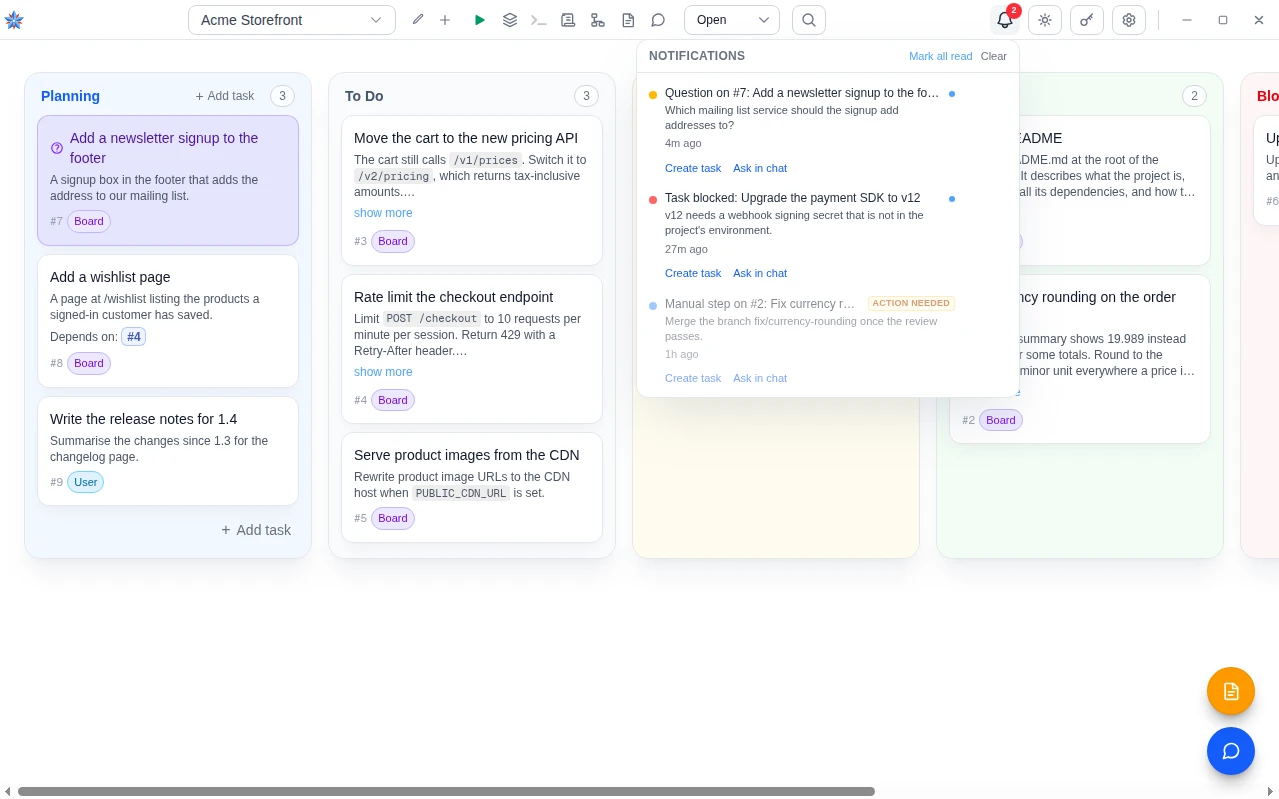
- Read a row. Each row has a coloured dot, a title, a short body and how long ago it happened. Red is an error, amber a warning, green a success and blue a fact. A row that needs something from you carries an Action needed badge. A paused queue with a reset time from the provider prints Resumes with the time in your own time zone.
- Click a row to go to the fix. Clicking marks the row read and opens where the fix lives. A notification about a task opens that task. A rejected AI key opens the project's AI Auth tab, a git credential that no longer decrypts opens Project Info, and a blocked firewall opens Containers. A failed flow opens that flow's page. An account notice opens Settings, then Account. A container that stopped answering offers a restart, behind the board's usual confirmation. A downloaded update restarts the app to install it.
- Deal with one row without going anywhere. Move the pointer over a row, or focus it with the keyboard, and three small buttons appear. On a phone they are always shown. Mark as read clears that one row and shows only on unread rows. Clear this notification removes that one row. Copy this notification copies the title, body and time as plain text. The panel header has Mark all read and Clear for the whole list.
- Turn a notification into work. A row that belongs to a project also offers Create task, which opens the task form with the notification text copied into the description, and Ask in chat, which opens the chat with a reference to the notification and read access to the project's code. In any text field, typing
@!opens a picker of notifications, so a task or a chat can point at one. - Read once, cleared everywhere. The read mark syncs with the notification. Marking one read on the desktop clears it on the phone and on every browser signed in to the account. Clearing does the same.
- Repeats fold into one row. A condition that keeps repeating, such as a rate limit re-checked every hour, a rejected key, a blocked firewall or a container that needs a rebuild, updates its unread row instead of adding a new one. The row shows the count with the first and last time, and Show all N occurrences unfolds each occurrence with its time and any wording that changed. Up to 200 occurrences are kept per row. Once you read or clear the row, the next repeat is a new notification. Notifications about a task never fold, since two tasks asking two things are two asks.
- Turn on desktop notifications. Open Settings, then Notifications, and switch on Desktop notifications. It is off by default and applies to this window only, so the desktop app and each browser choose separately. Switching it on asks the operating system or the browser for permission. If permission is refused, the switch stays off and a hint says to allow notifications for the app or site in your system or browser settings. On macOS, when the switch is on but macOS is set to show nothing, a dialog offers Open macOS Settings and Turn off in app. While on, every incoming notification also appears as a system notification. Clicking it focuses the board, marks the row read and opens the same place a panel click would.
- Know what reaches a phone. The phone sees the bell while the board is open in its browser, and a read there clears the desktop's badge. There is no notification with the browser closed.
What the kinds mean
There are 20 kinds. They are about a task (blocked, a question waiting for you, manual steps after a run, a run that failed to finish), the project's AI credentials (a rejected key, which opens the AI Auth tab, a rate limit, a paused queue), the container (an error at start, a rebuild needed, a note about emulation, a blocked firewall, a container ready), git (a credential that could not be decrypted), a failed flow, a secret a sync removed, the app (an update available or ready), your account (news from the cloud service, another desktop taking over the link, a signed-out cloud session), and credentials stored with no real keychain protecting them.
If it did not work
- The switch flicks back off. The permission was refused. Allow notifications for Borago Board in the operating system, or for the site in the browser, then switch it on again.
- The switch is on and nothing appears on a Mac. macOS can allow the app and still show nothing. Open System Settings, then Notifications, find Borago Board and pick an alert style other than None.
- A notification is on one device and not another. The desktop must be signed in to the cloud and syncing. A desktop replaced as the account's linked desktop stops syncing until you sign in again under Settings, then Account.
Related: When the agent asks a question or needs you, Cloud sync, browser and phone, Notifications reference, Messages