
Home / Docs / User guides
When the agent asks a question or needs you
How to answer the agent's question or clear a needs-attention note on a task from the desktop, a browser or a phone, and why the card waits in the meantime.
A run in Borago Board is single-shot. When the agent needs a decision it cannot make, it ends the run with a question, and the task waits for you. When it finishes work that leaves something only you can do, it leaves an action note on the task. Both land in the task's comment thread, both mark the card, and both reach the bell on every device signed in to the account. This guide is how to read each one and how to unblock the task from wherever you are.
Goal
A task that stopped to ask, or that needs your attention, is answered or acknowledged, and its work carries on.
Before you start
- A project with tasks running, see Getting started in ten minutes.
- To act from a browser or a phone, cloud sync turned on and the account signed in there, see Cloud sync, browser and phone.
Steps
- Spot the card that is asking. A card waiting for an answer gets a violet border and a question icon whose tooltip reads Waiting for your answer. A card that needs a look, not an answer, gets a teal border and an icon whose tooltip reads Needs your attention. The two are different asks, and only the first stops the card from being queued. A question raised while you had the task open leaves the card in In Progress. A question raised while nobody had it open moves the card to Blocked.
- Open the task. Click or tap the card. The task dialog shows a pill with the same words, Waiting for your answer or Needs your attention. On a Done task the second pill reads Manual steps required. Trying to drag a card that is waiting for an answer opens the task instead of moving it, because the answer form is inside.
- Find the question in the thread. Scroll to the comments. The question is a comment tagged Question, drawn as an amber card with a pulsing Awaiting your answer badge. There can be more than one. What the agent found before it asked is kept in the dialog's section headed Output after the provider's name, above the thread, so you can read it before deciding.
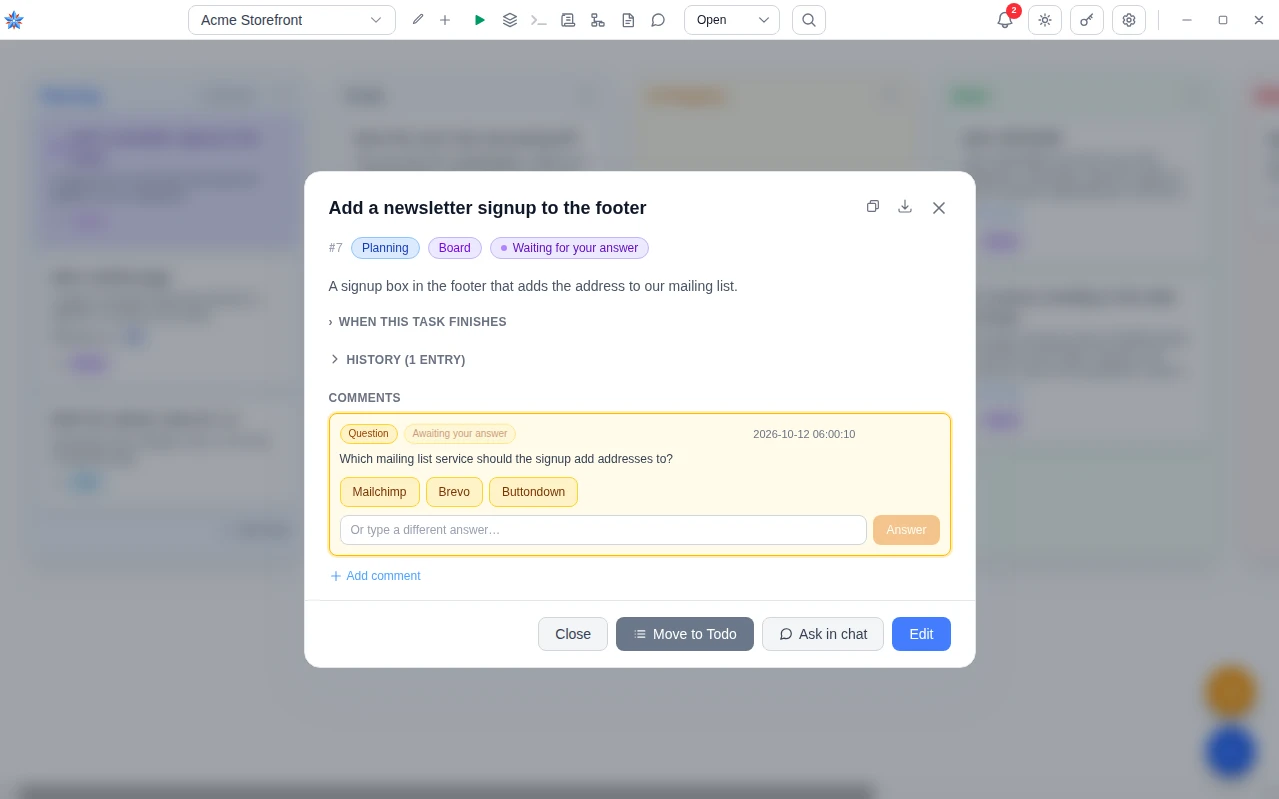
- Answer it. A question with choices shows one button per choice. Pressing a button sends that choice and nothing else. A question that allows a typed answer has a field, Type your answer, or Or type a different answer when choices are also offered, with an Answer button. An empty answer is refused. When choices are given without a free-text field, only a choice is accepted. Once sent, the comment turns green and reads Answered: with your text and the time. A question can be answered once. Answering twice is refused with a message.
- Watch the task resume. When every question on the task is answered, the task moves back to To Do by itself and the history records All questions answered. The queue then runs it again in its ordinary turn, and the new run receives the question and your answer in its prompt. There is no session resume. The new run starts from the task text and the previous output, not from where the old one stopped. A task whose owner is User is not run by the queue. It sits in To Do until you run it.
- Read an action note. When a run ends with steps only you can perform, such as a manual deploy, an approval, or a tool it installed that a rebuild would lose, it writes a comment tagged Action listing them and sets the needs-attention mark. The post-run review, when it is on, leaves the same kind of note when it judges the work incomplete. Nothing is re-queued by a review. The decision is yours.
- Acknowledge the action note. There are two ways, and both clear the teal mark. On a Done task press Complete in the dialog's footer once the steps are done. Or move the card to To Do or Planning, which clears the mark because the move is the acknowledgement, and in To Do the queue runs the task again. On the desktop app and a browser on the local network, a Done task with a note also offers Run again with followed by the provider's name, which re-runs the task carrying the last run's output forward. That button is not shown on the cloud browser or the phone, where moving the card to To Do does the same job.
- Know what the queue will refuse. A task owned by the board that still has an unanswered question cannot be moved to To Do or In Progress. The app refuses the move with the message This task is waiting on you - answer its question or clear the action first. You can still close it or move it to Blocked. The refusal exists because To Do is what the queue picks up, and a fresh run would ask the same question again while your answer was being typed. Done, Blocked and Canceled stay reachable, so closing a task never requires answering it first. A needs-attention note alone never blocks a move.
- Follow the notification. The bell in the top bar shows a badge. A question asked while nobody was watching, or left unanswered when you closed the task, arrives as a notice starting Question waiting or naming the provider that asked, with the question's first line. An action note arrives as Task done - manual steps required with the task's title. Clicking either opens that task, where the form or the note is. The same rows appear in the bell on every device signed in to the account, and reading one there clears it everywhere. With Desktop notifications switched on in Settings, then Notifications, the computer running the desktop app also shows a system notification, and clicking it opens the task in the same way. Nothing is delivered to a device whose app or browser tab is closed. The notice waits in the bell for the next time you open the board there.
- Answer from a browser or a phone. Open the board in the browser, on the local network or at board.boragosoft.com, and open the task. The question comment renders with the same buttons and field, and the answer is accepted there with the desktop asleep. The answer syncs. When the desktop app next connects, it sees the task back in To Do and its queue runs it. Until then the task waits. The same holds for an action note. Pressing Complete, or moving the card, syncs and takes effect on the desktop when it reconnects.
- Check a run that ended without saying whether it finished. Every run should end with the agent declaring the outcome. Sometimes it stops before that. The task still lands in Done, but the board does not claim success on the agent's behalf. The summary says the provider stopped without declaring the task done and asks you to check the output. An action note is added saying the board cannot tell whether it finished, and the history line reads that it ended without declaring an outcome rather than that it completed the task. Read the run output. If the work is there, press Complete. If it stopped part-way, move the card to To Do to run it again.
If it did not work
- The Answer button says Sending and nothing happens. The message Could not reach the server. Your answer was not saved - try again. means the request did not arrive. Your text is still in the field. Check the connection and press Answer again. A message such as This question was already answered means another device or tab answered it first. Reopen the task to see the answer.
- I answered, but the card is still in Blocked. Look for a second question further down the thread. The task returns to To Do only when every question on it is answered. A question that was asked by the pre-run review about task text you have since rewritten no longer holds the task, but it stays in the thread as a record.
- The card will not drag. A card with the violet mark opens the task instead of dragging, and a card whose run is working asks whether to stop the run. Answer the question, or use the task dialog, and the card drags again. From the cloud browser or the phone, the queue that runs the task lives on your desktop, so a card moved to To Do waits until the desktop app is open with cloud sync on.
Related: Writing tasks the agent can do, Notifications, Cloud sync, browser and phone, How a run works, States