
Home / Docs / User guides
Connecting a repository
Three ways to give a project its code. Sign in to GitLab for a deploy key, paste an SSH key or a token, or point at a local folder. What is stored and cloned.
A project in Borago Board clones a repository into its container, mounts a folder on your machine, or both. A private repository needs a credential. You can sign in to GitLab and let the app create a deploy key for that one repository, paste an SSH key or a personal access token yourself, or reuse a key saved in the vault.
Goal
A project whose container clones your repository at start and can push as you.
Before you start
- A project, or the create dialog open, see Creating a project.
- For a private repository, an account on the forge that can add a deploy key, or a token or key with push rights.
- For the sign-in, the desktop app. From a browser or a phone the button works through the desktop, so it must be open with cloud sync on, and only on a project that has already been saved.
Steps
- Open the git fields. In the project dialog, on the Project Info tab, fill Git repository URL with either form,
https://host/owner/repo.gitorgit@host:owner/repo.git. Git branch is optional and defaults to the remote's default branch. Below them sits Git access, marked optional and for private repositories only, with the choices in the next three steps. - Sign in with GitLab. Press Sign in with GitLab. A dialog headed Connect a GitLab repository first states what happens. A deploy key is added to the one repository you pick, the sign-in is used once to create it and then discarded, the key is stored encrypted on your machine under a key the cloud never stores, and the agent runs with the key in its environment. Tick I understand a deploy key will be created on the repository I choose and press Continue to GitLab.
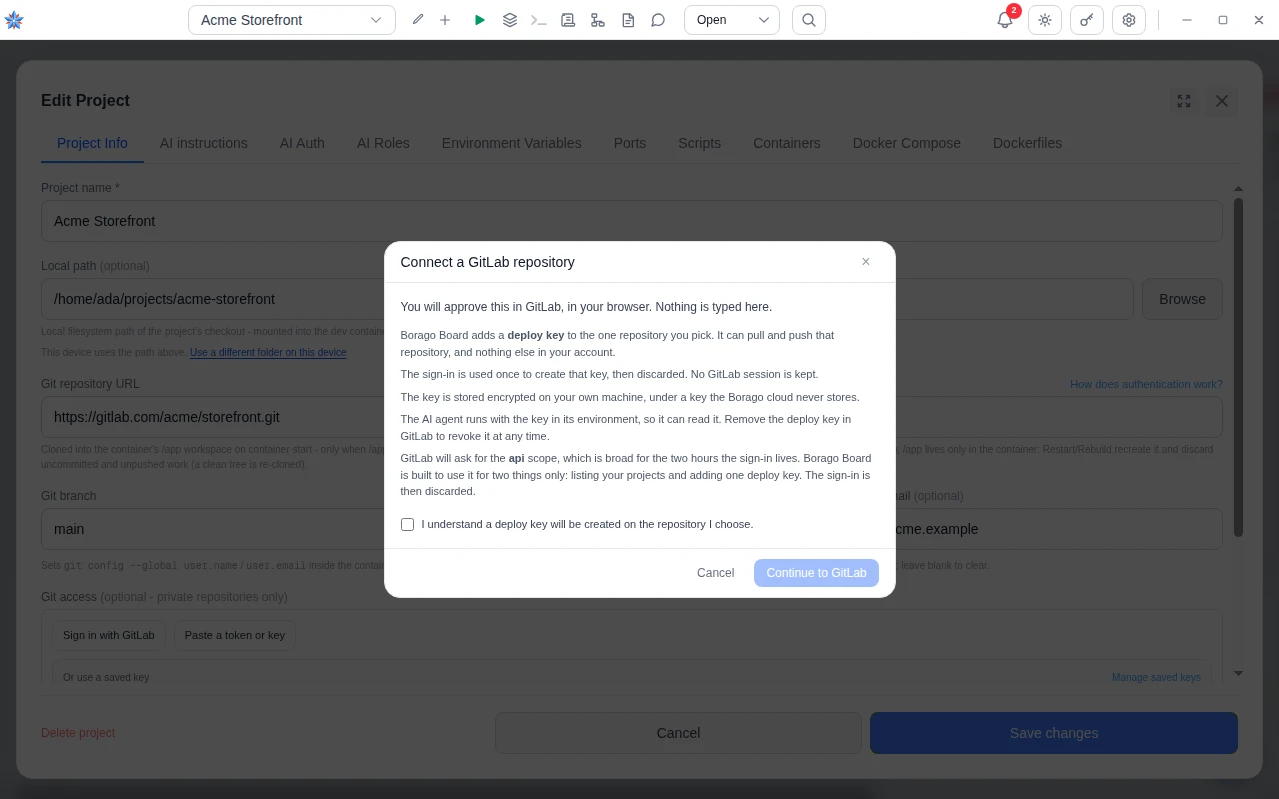
- Approve in your browser. The dialog shows a code and two buttons, Open with default browser and Copy link, with the link printed beneath. The app never opens the browser by itself, since the browser signed in to GitLab is often not the default one. Both buttons stay available while the dialog reads Waiting for you to approve. This window updates by itself.
- Pick the repository. Once approved, the dialog lists the projects your sign-in can add a key to, with a Filter repositories box. Pick one. The app generates a key pair, uploads the public half as a deploy key with push rights, and fills Git repository URL with the SSH form. If the list is empty, the dialog says the sign-in reaches no repositories yet and links where to fix that.
- Know what is stored. Nothing is signed in afterwards. There is no GitLab session to renew or sign out of. What remains is an SSH private key, stored the same way as a pasted one, encrypted on your machine, write-only, and synced as ciphertext to your other desktops unless you keep it on this device. Revoke it from the repository's deploy key list in GitLab. On a project not yet saved the section shows Connected to owner/repo via GitLab with Disconnect. The key is held in memory until you save, for up to 30 minutes, and cancelling or closing the form removes the deploy key from the repository again.
- Or paste a key or token. Press Paste a token or key. A personal access token pairs with an
https://URL. An SSH private key, pasted whole with its BEGIN and END lines, pairs with agit@URL. A mismatch is refused before anything runs, and the field warns as you type. There is no GitHub sign-in, so GitHub users paste a token or a key here. Use a dedicated key or token scoped to the one repository, since the agent can read it. Once stored, the section shows A key is stored (hidden) with a Remove button, and never shows the value. - Or use a saved key. Under Or use a saved key pick a key from the vault. This links the project to it and moves no secret, so it works from a phone too. See Secrets and environment variables.
- Or use a local folder. Fill Local path with a folder on the machine that runs the containers, or press Browse on the desktop app. The folder is mounted into the container as its working directory, so edits land on your disk. Leave it empty and the code lives only in the container. A restart or rebuild then recreates the container and discards uncommitted and unpushed work.
- Set the commit identity. Commit name and Commit email are optional. When set, every commit the agent makes in a run, a terminal, a script or a flow is attributed to them, and they apply on save without a restart. Blank leaves the container's own configuration alone. These two fields are not secret and sync to your other devices.
- Start the container. Press the project's start button. After the container is up the app clones the repository into the container, only when its working directory is empty. An existing checkout is never touched, and any other content refuses the clone rather than overwrite it. On a container already cloned, the configured branch is fetched and checked out, unless the working tree is dirty. A failed clone keeps the container up and raises a notification routed to the Project Info tab, naming the reason.
- Open a merge request after a run. When a run ends in Done having switched branch or committed, the task gains an action note with a link that opens the forge's new merge request form, or pull request on GitHub, with the branch pair filled in. The note says once the branch is pushed, since the app does not check the remote. GitHub, GitLab, Bitbucket, Gitea and Codeberg get a link, other hosts none.
If it did not work
- The clone was refused with a token and URL mismatch. The message says what shape the stored key has, such as a header line and its line count. A pasted public key, or a header whose dashes an editor turned typographic, reads as a token. Paste the private key again from a plain-text editor.
- The sign-in button is disabled. On a new project from a browser or a phone the tooltip reads Save the project first, then connect a repository to it. Otherwise it reads that the desktop app is not connected. Open the desktop app with cloud sync on.
- The clone worked once and the code is gone. Without a local path the checkout lives in the container. Restart and rebuild recreate it. Commit and push before either, or set a local path.
Related: Connect a GitLab repository by signing in, Creating a project, Secrets and environment variables, When the agent asks a question or needs you, Security