
Home / Docs / User guides
Writing tasks the agent can do
How to write a Borago Board task that finishes in one run, with an acceptance check, mentions, prerequisites, attachments and the pre-run review.
The agent reads a task the way a contractor reads a work order that arrives with no phone number on it. Everything it needs has to be in the description, or reachable from it. A task written that way finishes in one run. A task that leaves something out ends in a question, a wrong guess or a retry, and each of those costs a whole run, because there is no session resume. This guide is the set of habits that avoids that.
Goal
Tasks that reach Done in one run, with fewer questions and fewer retries.
Before you start
- A project with a running container and a task runner, see Creating a project.
- Some idea of what the agent can and cannot do. It has a shell and a file editor inside the container, it can search the repository, and on most providers it can search the web. It cannot see your screen or your other projects, unless you connect two projects on purpose, and it reaches outside the container only through the network, and through Docker when container management is on. The agent capabilities page is the full list.
Steps
- Put the whole job in the description. The description is sent to the agent at the start of the run and is re-read on every turn of it. Nothing else from your head reaches it. Never write "as discussed" or "like the last one". Name the file, the function, the command, the expected behaviour. The title is a label for the board, and the description is the work order.
- State how to check it is done. End with the test the agent can run itself. "Tests pass", "the endpoint answers 200 on GET /health", "the page renders without console errors". The agent can run that check itself before it declares the task done, and the post-run review, when it is on, judges the change against it. A task with no check is done when the agent says so.
- Size it for one run. Each run is a fresh conversation. The agent receives the project's instructions, the task, recent comments and a summary of related earlier work, and the run ends when the agent declares an outcome. There is no session resume. A question raised in the middle of a run is a discarded run plus a full second run once you answer, and a failed run is retried from the beginning after a short wait, with the previous attempt's output as background. After repeated failures the task moves to Blocked and the project's queue pauses until you press Resume. So split work at real boundaries, where one task's result is a thing the next can name, and not smaller. Every task pays for its context again, so ten tiny tasks cost more than three right-sized ones and give the agent less to work with.
- Point at things with a mention. Type
@in the description and a picker opens, listing up to eight matches as you type. Enter or Tab inserts one. The token shapes are below. What lands in the text is the token plus a caption, and only the token is read.
| Token | Points at | What the run receives |
|---|---|---|
@#42 | Task number 42 of this project | Its title, description and latest run summary |
@~3 | Note number 3 | The note's text |
@:auth | A knowledge area | The agent's own notes on that area of the code, with the files it anchors to |
@/src/auth.ts | A file in the container | The path, as a place to start reading. The run has an editor, so it reads the file itself |
@/src/ | A folder, with the trailing slash | A listing of the folder's names, never its contents |
Task numbers are per project and the same on every device, so @#42 means the same card on your phone. Knowledge areas are written by the agent as it works, one per area of the code it has touched, so a new project has none. An earlier conversation, @=5, is a mention for chat only and is not offered in a task. Mentions render as chips on the card.
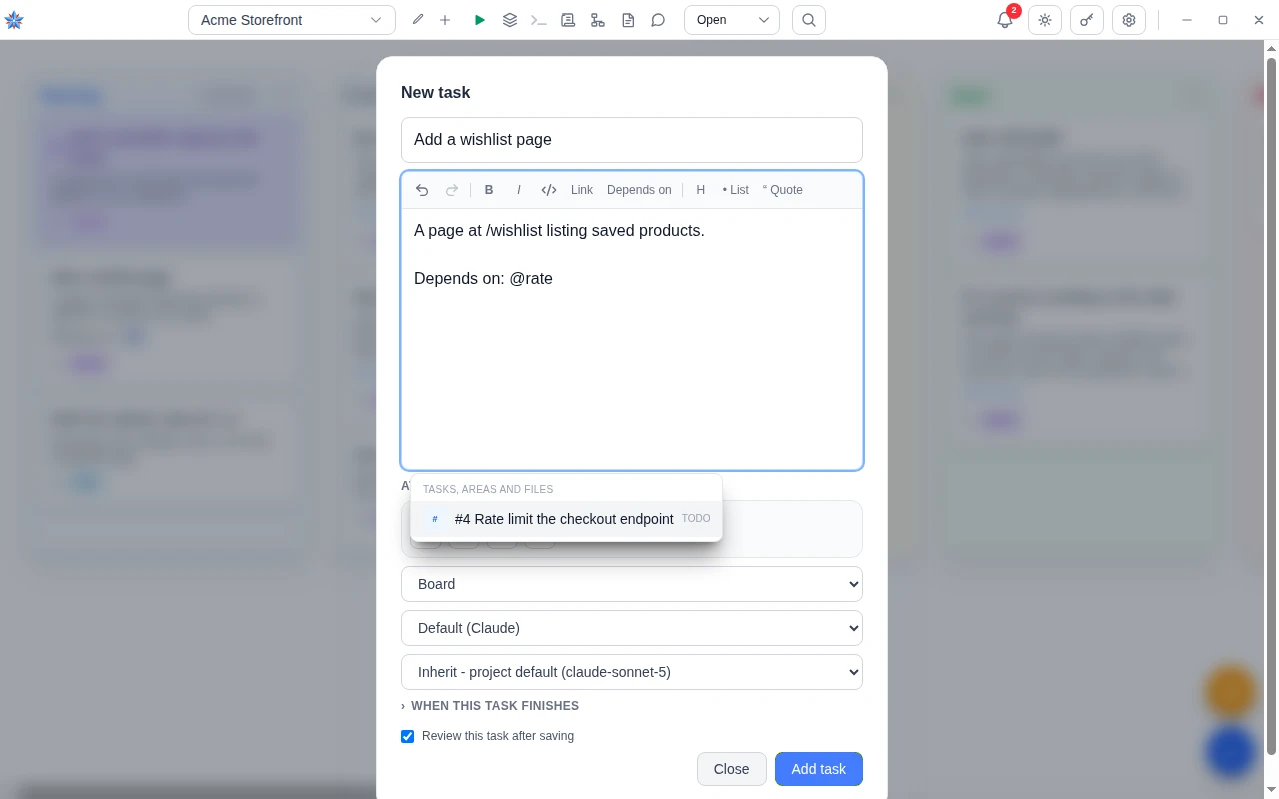
- Declare order with a task mention. A task that mentions another with
@#ndoes not start until that one is finished. The editor's Depends on toolbar button inserts a line of that shape for you. Done, Canceled and closed tasks count as finished. Blocked does not, because a blocked prerequisite is the clearest sign the dependent work is not ready either. While it waits, the card shows a clock and the prerequisite's number under Waiting for, and the To Do column's banner reads Auto-run paused - waiting on a prerequisite. Otherwise the queue runs To Do in the order the cards are in, top to bottom, one at a time per project, and dragging a card is how you change that order. An unknown number is ignored rather than deadlocking. - Attach the file or the screenshot instead of describing it. The Attachments section of the task form has four icon buttons, Add files, Draw an image, Take a photo and Take a screenshot and annotate it, and it accepts a drag and drop or a paste. A screenshot opens in the paint editor so you can circle the broken part before attaching. Up to ten files per task, each under 10 MB, which is the app's own message when a file is too large. Images, plain text and data files, source code and web files are accepted by default. The files are made available to the agent read-only inside the container at the start of every run. The per-thumbnail Reference in description button, or
@, inserts the file's name in the text. See Attachments, screenshots, paint and camera. - Leave the review ticked. The task form's Review this task after saving box is ticked by default. When you press Add task, the task is saved at once and a cheap model reads it in the background. Silence is the commonest outcome. When it finds something, it arrives as comments on the card within seconds. A missing decision becomes a question comment with option buttons or a text box, the card gets a violet question mark, and the task cannot be moved to To Do until every question is answered in its comments. A clearer wording, or a task you already have, becomes an action comment, the card gets a teal marker, and nothing is applied for you. The suggested rewrite is text you read and paste yourself. The review costs a small fraction of a run and never blocks a save. Its reviewer is the Pre-run review role, and Review instructions on the project's AI instructions tab tells both reviews what not to raise for this project. See When the agent asks a question or needs you.
- Put repository-wide rules in the project, not in every task. Global AI instructions on the project's AI instructions tab is sent with every run. Branching rules, the test command, the code style, what must never be committed, all belong there once. The task description then carries only what is specific to that task. The starter text the app fills in on a new project is a workflow of that kind, and it is yours to edit.
- Use Planning as the holding pen. Nothing runs from the Planning column. It is where + Add task puts a new card, where the review's comments arrive, where tasks the agent proposes from inside a run are created (a run can ask for its proposals to be queued, and those move on to To Do by themselves), and where tasks created from a chat wait until you queue them. Drag a card to To Do when it is ready, or open it and press Move to Todo. In Progress cannot be entered by hand. Only the queue moves a card there.
- Use a User task for your own work. The task form's owner selector reads Board by default. Set it to User for a card that a person will do, a deploy you run yourself or a decision to make. A User task is never run by the agent, is never reviewed, and shows a User pill on the card. It sits on the board so the plan is complete.
Four examples
A task that will finish in one run. It names the file, the behaviour and the check.
In src/api/users.ts, add a GET /users/:id/avatar route that returns the
user's avatar image with the correct Content-Type, or 404 when the user has
none. Follow the pattern of the existing GET /users/:id route. Add a test
in tests/api/users.test.ts for both cases. Check: npm test passes.
A task that leans on the project's own memory and on an attachment.
The login page looks like the attached screenshot on a 375 px wide phone:
the Sign in button is pushed off the bottom. Fix the layout in the login
component (see @:auth for where it lives) so the button is visible without
scrolling at 375 px and nothing changes at desktop widths. Check: the
Playwright test in tests/e2e/login.spec.ts passes at both viewports.
A task with a prerequisite, written after the one above was created as task 17.
Depends on: @#17
Once the login layout fix is in, add a "Forgot password?" link under the
Sign in button that goes to /reset. The link uses the existing app-link
style. Check: the e2e login test still passes and the link is present.
A weak task, and the same task rewritten.
Fix the search bugSearching for a term with a trailing space returns no results, while the
same term without the space works. The search handler is in
src/search/query.ts. Trim the query before it is used, and add a unit test
in tests/search/query.test.ts with a trailing-space query that expects the
same results as the trimmed one. Check: npm test passes.If it did not work
- The task ended in a question. The agent needed a decision the description did not contain. Answer in the card's comments, and the task returns to To Do by itself and runs again from the beginning. Then add that decision to the description or, if it applies to every task, to Global AI instructions, so the next task does not ask.
- The task was retried and then Blocked. The comment names the failure. Read the run's output, fix what the description got wrong, and drag the card back to To Do. Whenever retrying stops, the project's queue pauses with a banner in the To Do column that says why, and Resume beside it starts the queue again.
- The task came back Done but the work is not there. The agent stopped before declaring an outcome, and the board says so rather than assuming success, with a comment and an action marker on the card. Turn on Review the result after a run in the project's AI Roles tab, and it leaves a note whenever the change does not match the task.
- The agent asked for something that was in a comment. Comments are sent, but only the most recent ones. Anything the agent must not miss belongs in the description, which is always sent whole.
Related: Getting started in ten minutes, When the agent asks a question or needs you, Chat to tasks, Attachments, screenshots, paint and camera, Writing tasks and project instructions for the agent