
Home / Docs / User guides
Flows
How to write a scheduled job as a few plain-language steps, have the app analyse them into code and AI steps, switch it on, and read its runs.
A task on the board costs a full agent run every time, and plenty of what people want automated is smaller than that. A flow in Borago Board is a job written as plain-language steps. When you save it, a model decides which steps are ordinary logic, which it writes once as code, and which need judgement at run time. Then it runs on a schedule, when a task moves, or when you press Run. There are no loops, no branches and no sub-flows.
Goal
A flow that runs by itself on a schedule, with its runs and failures readable on the board.
Before you start
- A project with a working provider and a container that starts, see Creating a project.
- The desktop app open. Editing a flow works from any surface, but a flow runs only on the machine that runs the project container.
Steps
- Open the flow list. In the project's toolbar press Flows. A page headed Flows opens with New flow and Back to board. On an empty project it offers Create the first one. Each flow in the list shows its trigger, its step count, its next run when it is switched on, an analysis badge and a last-run badge. The list also has On for each flow, plus Open, Duplicate and Delete.
- Create a flow and name it. Press New flow. The editor opens with a name field, Name this flow, a Saved indicator, and a canvas holding one start card. Everything typed autosaves, and the page flushes the last edit before you leave it.
- Write the steps. Press Add step. A card appears below the last one, already joined to it, with a box asking What should this step do? Describe one action per step, such as "Fetch the last 200 lines of the deploy log" or "Summarise the errors and say whether any need a person". The first line of a step is its name, and later steps receive that step's output under it. The start card's box is optional. Delete a step with Delete this step.
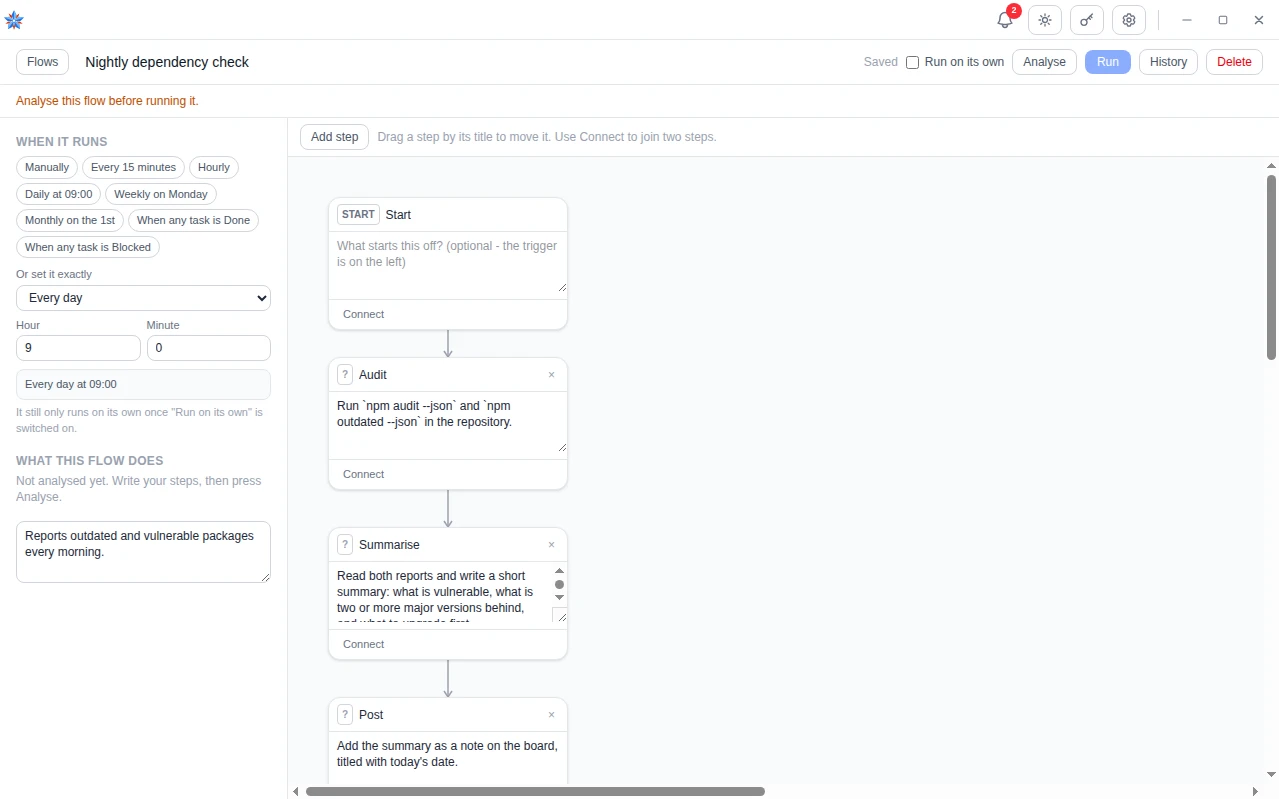
- Let the analysis classify the steps. On the desktop app a graph change starts an analysis in the background. You can also press Analyse, which reads Re-analyse while the analysis is current. Until then the card badge reads ? and the side panel says Not analysed yet. Write your steps, then press Analyse. After analysis each card carries one of three badges. CODE means deterministic, written once as code and re-run free and identically. AI means the step asks a model each time the flow runs, which costs money. DATA means a constant passed along with nothing executed. The panel headed What this flow does names the model used and lists any issues. A step the model could not place becomes a data step with a warning.
- Choose when it runs. Under When it runs pick a preset, Manually, Every 15 minutes, Hourly, Daily at 09:00, Weekly on Monday, Monthly on the 1st, When any task is Done or When any task is Blocked. Or use Or set it exactly, whose kinds are Only when I press Run, Every N minutes, Every hour, Every day, Every week, Every month and When a task moves to a column. Times are in the local time of the machine that runs the flow. A monthly day is 1 to 28, so no month is skipped. The task kind has a Column control offering all six columns and a Which task control with Any task in this project or one specific task.
- Switch it on. Tick Run on its own in the editor header, or On in the list. A flow is off when created and off again when duplicated, so nothing runs the moment it is saved.
- Run it once by hand. Press Run. A Running label shows and a Stop button appears beside it. The button is disabled with a reason when it cannot run, such as Analyse this flow before running it. or This flow has been edited since it was last analysed. Analyse it again first. From the cloud browser or a phone it is disabled with Running a flow needs the project container on your own machine. Open this flow in the desktop app. Code steps run inside the project's container, never in the app itself.
- Start a flow from a task. When writing or editing a task, expand When this task finishes. It lists the project's scripts and flows under When moved to Done and When moved to Blocked. A task's own hooks fire only on those two columns, whether the card was dragged there or a run ended there. A flow that both watches the column and is named by the task runs once.
- Read the runs. Press History. A Runs panel lists each run as Run 3, then automatic or by hand, the time, the duration and the cost when a model was called. Open a run to see each step's status, duration and output or error. A step that failed stops only the steps that depended on it, recorded as skipped. The newest 50 runs are kept, on the machine that ran them. Runs do not sync, though the flow itself, its trigger and its last outcome do. A run that failed or could not start raises a notification, Flow "name" failed or Flow "name" could not run, since a flow has no card on the board to show it.
- Know the guards. A flow already running is not started again. A flow edited since its analysis is refused, because code written for the old text is the failure that looks like success. Each step has a time limit of 120 seconds and each run 600 seconds. Missed windows are never caught up. A laptop shut for three days runs a daily flow once at its next time, not three times.
If it did not work
- The badge reads Edited since analysis. Press Analyse on the desktop app. A flow edited from the cloud browser is saved without analysis and stays in this state until the desktop analyses it.
- The list shows Could not run. Open the run in History. The reason is recorded there, most often a missing analysis or a container that was not running.
- The run says a step timed out. Split the step, or move slow work into a script and call it from a step. A step stops at 120 seconds.
Related: A nightly job with a flow, The terminal, scripts and the file browser, Notifications, Flows reference, Choosing an AI provider