
Home / Docs / User guides
Ports and LAN access
How to publish a dev server port from the project container, check it is free, keep it on this computer or open it to the local network, and why that matters.
A dev server inside a project container in Borago Board is invisible until a port is published. The Ports tab maps a port on your machine to a port in the container, and by default binds it to this computer only, so nothing on your network can reach it. One tick per row opens a port to the local network when you mean it, and one switch in Settings keeps every project closed whatever a project says. This guide is the safe way to open a browser on what the agent built.
Goal
A dev server reachable at localhost on your machine, and on the local network only when you chose that.
Before you start
- A project whose container is managed by the app, see Creating a project. A custom, externally managed container has no Ports tab.
- The port the server listens on inside the container, for example 3000 for most Node dev servers.
Steps
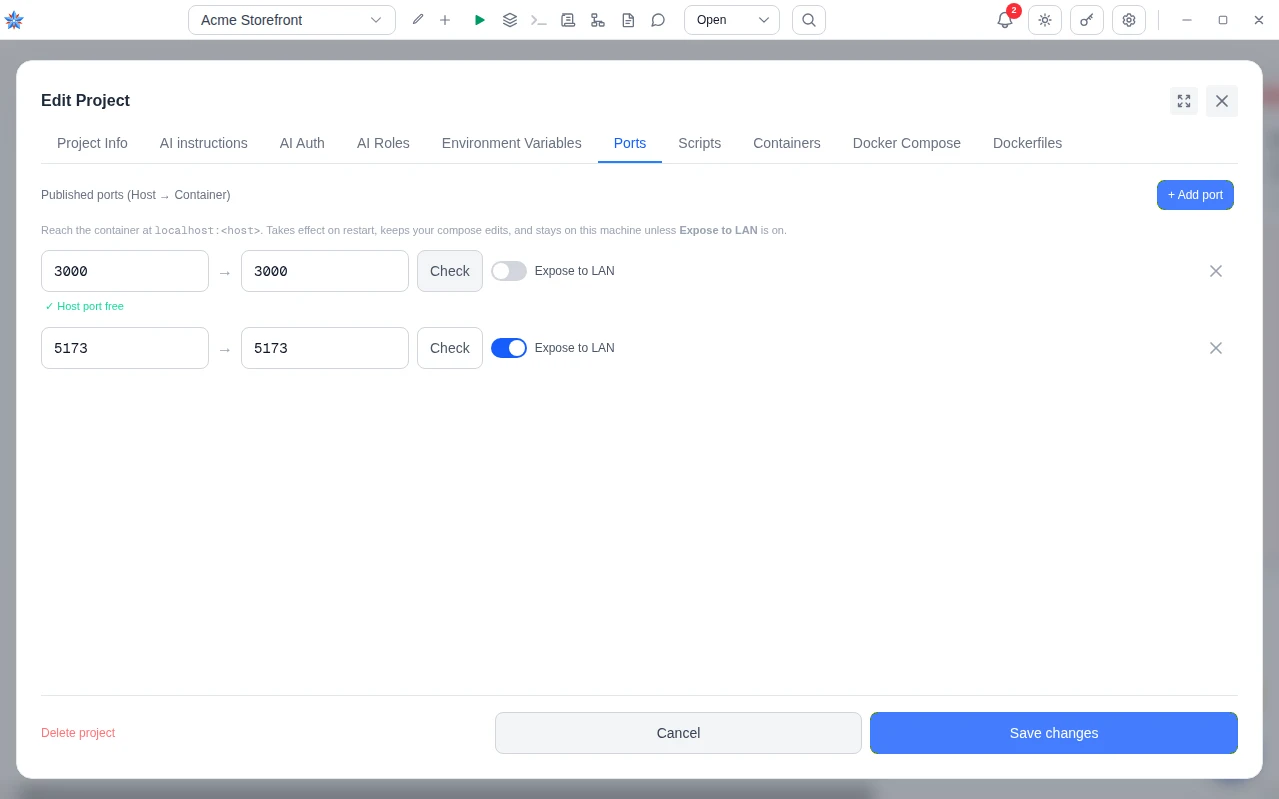
- Open the Ports tab. Open Edit project, then Ports. The list is headed Published ports, host to container, and a line explains that the container is reached at localhost on the host port, that a change takes effect on restart, that compose edits are kept, and that the port stays on this machine unless Expose to LAN is on. With no rows it says No ports published. The container is isolated.
- Add a row. Press + Add port. The first row's Host box is blank, since the number you will type into a browser is one you already have in mind. Each row after the first is filled with the number after the row above, so 3000 is followed by 3001. Type the Container port the server binds inside the container. The host port can differ from it.
- Check the port is free. Press Check on the row. The app checks both that no other project on this board already claims the port, even a stopped one, and that the port can be bound on this machine right now. A free port reads Host port free. A clash names the reason, such as Already published by "Shop API". Both projects cannot run at once on this port. or Something else on this machine is already listening on this port. The project's own running container is not counted, since the restart that applies the save replaces it. From the cloud browser or a phone, Check consults only other projects' ports, not programs on the machine. The desktop's own check has the last word at start.
- Avoid ports browsers refuse. Browsers refuse to load a hard-coded list of ports reserved for other protocols, such as 25, 2049, 6000 and 6666, with the message This address is restricted, even when a server is listening. The row warns under the Host box as you type one and suggests 3000 or 8080 instead. The warning is advisory. Other clients can still use the port and saving is not blocked.
- Save and restart. Save the project. Ports take effect when the container is recreated, so the dialog offers a restart when the container is up. Then open the address in a browser on this machine,
http://localhost:3000for a host port of 3000. - Open a port to the local network. Flip Expose to LAN on the row. The port is then published on every interface of the machine, so a phone or another computer on the same network reaches it at your machine's address. Leave it off for anything that does not need that. A port marked for the LAN is published to your network, while every other port stays bound to this computer.
- Know why the app pins ports to loopback. A port Docker publishes on every interface bypasses the host firewall, because Docker routes the traffic before the firewall's own input rules see it. A rule you set in ufw or firewalld does not close it. That is why every unaddressed port in a project's compose file, including those of a database beside the main service, is bound to this computer at start, why the policy proxy moves any port the agent publishes onto this computer too, and why the LAN tick exists as the one deliberate exception. The agent's own containers follow their own switch, described in Container management.
- Keep every project off the network from one place. Open Settings, then Docker, and tick Keep project containers off the local network. Every port then stays on this computer, whatever a project allows. It applies to a container when it is created, so the line under the switch reports which containers are still open until restarted, with Restart it or Restart them, and saving the switch on offers that restart at once. With the switch off the line lists what is open to the local network now, or says nothing is. This setting is for this computer only and does not sync.
If it did not work
- The container failed to start with a port already allocated. Another project holds the port and was stopped when you checked, or was created on another device. Open the notification, which names the port, change the host port on one of the two projects, and restart.
- The page says This address is restricted. The host port is on the browsers' reserved list. Pick another, such as 3000 or 8080, and restart.
- A device on the network cannot reach the port. Check Expose to LAN is on for that row, that the container was restarted after the change, and that Settings, then Docker, Keep project containers off the local network is off. Also check the server inside the container listens on all addresses, not only its own localhost.
Related: Container management, Connected projects, Browser access on your network, Creating a project, Containers