
Home / Docs / User guides
Connected projects
How to put a frontend and a backend project on one private network so each container reaches the other by name, and how to move a project onto its own network.
Every project in Borago Board runs its containers on a network of its own, so one project's container cannot reach another's unless you connect them. Step 7 covers a project created on an older version, which shares Docker's default network until it is moved. A frontend and a backend need the opposite. Connecting two projects gives that one pair a small private network that only they share, and each container answers to a name the other can use. You pick projects, never networks, and the app creates and removes the networks itself.
Goal
Two projects whose containers reach each other by name, and no other project's container reaching either.
Before you start
- Two projects with app-managed containers on the same desktop, see Creating a project.
- The desktop app. The connection is saved from any surface, but the networks are created on the machine that runs the containers.
Steps
- Open the connection field. Open one of the two projects with Edit project, then the Containers tab. Below the container management settings sits Connected projects, with the hint that this container can reach each one by name once both containers restart. It is shown only on a saved project.
- Connect the other project. In the Connect a project list pick the other project. It appears as a chip with a Disconnect button. Save. The connection is symmetric, so the other project's dialog now lists this one too, and it syncs to your other devices along with the rest of the project.
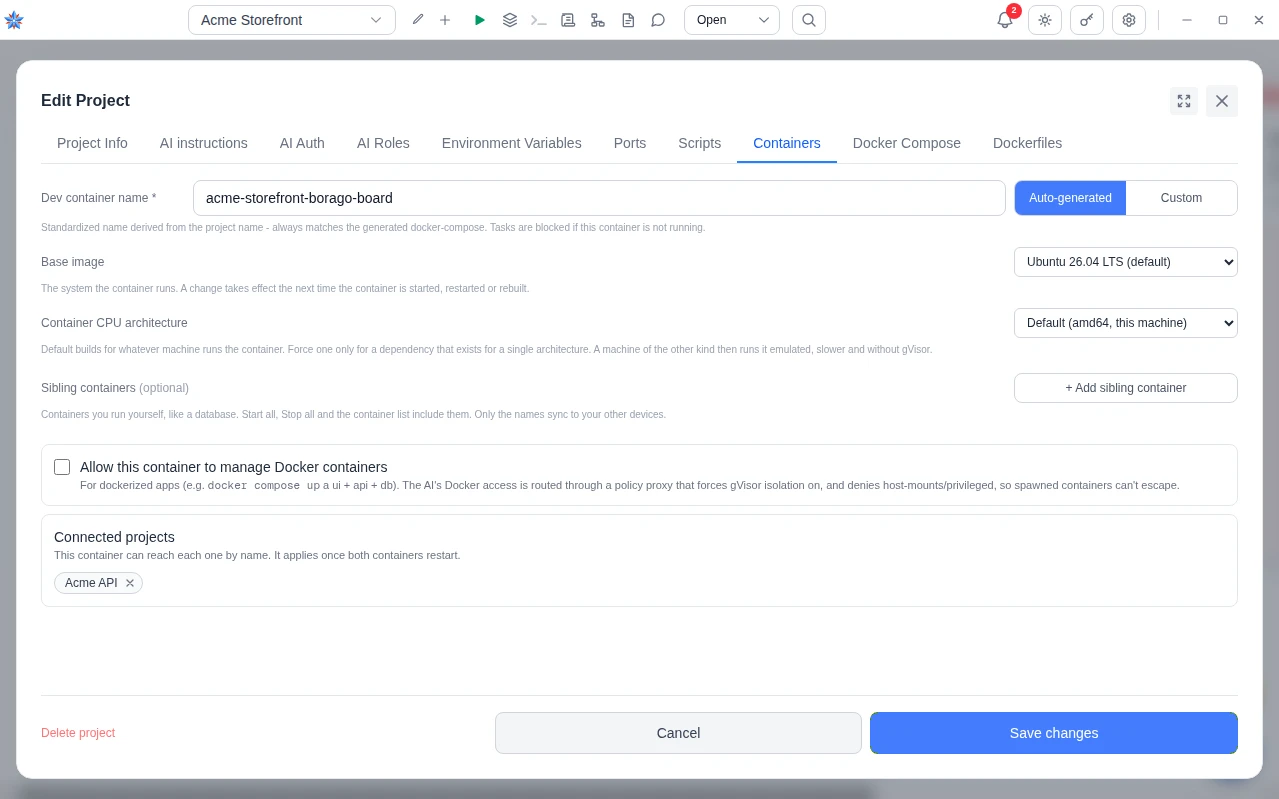
- Restart both containers. A container joins a network when it is created, so the connection applies once each container restarts. Saving the change offers a restart. Press the project's restart from the board for the other one. A restart recreates the container, which discards uncommitted work in a container-only workspace, and the usual warning says so. See Connecting a repository for keeping work on a local path.
- Reach the other container by name. Each container reaches the other under two names, the project's name in kebab case and its container name, which is that kebab name followed by
-borago-board. A backend project called Backend API answers asbackend-apiand asbackend-api-borago-board. Use the port the service listens on inside its container, not a published host port. For example, a frontend reacheshttp://backend-api:3000when the backend's server listens on 3000. - Let the agent know. The agent knows which projects it can reach, which names they answer to, and that the container's own port is the one to use. When a name does not answer, it says so rather than working around it, which means that container is stopped or has not been restarted since the connection was made. Nothing else is granted. The policy proxy's rules still apply to any container the agent creates, and those siblings may join the pair network of their own project.
- Understand the shape. A connection is one pair. Connecting A to B and B to C does not connect A to C, and a star, a chain or a full mesh are just more pairs. Each pair network is two-way, since a Docker network is. Nothing but the app removes one. A project's own network lives until the project is destroyed. Stopping a container keeps it.
- Move an older project onto its own network. A project created before per-project networks, or one whose container has not been recreated since, still shares Docker's default network with everything else on the computer. Open Settings, then Docker. Under Keep project containers off the local network a line says how many projects still share Docker's default network, with a button, Move to their own networks. Pressing it asks once, since running containers restart now and stopped ones move on their next start, and on Linux applies the firewall rules the moved projects need under one administrator prompt. A restart or rebuild from the board moves a project too. A plain start of an existing container leaves it where it is.
If it did not work
- The name does not answer. Restart the container on the side that did not answer, and check it is running. Both containers must have been recreated since the connection was saved. Then check the port is the one the service binds inside its container.
- The other project is not in the list. The list offers projects in this account on this board. A project deleted to the recycle bin is not offered until it is restored.
- The move reported firewall rules that were not applied. The panel prints the commands with Copy the commands. Run them in a terminal as an administrator, then restart the containers.
Related: A frontend and a backend as connected projects, Container management, Ports and LAN access, Containers