
Home / Docs / User guides
Container management
How to let the agent start a database or another service beside the project container, what the policy proxy allows and refuses, and the Linux firewall rule.
A project's container in Borago Board never gets the Docker socket. On Linux a container that can create containers is effectively root on the host. So when the agent needs a database, a cache or a test service, it asks a small policy proxy instead. The proxy forwards ordinary requests to Docker, sandboxes and tracks everything the agent creates, and refuses the requests that would break out. Those services run as siblings of the project container on your machine, not inside it.
Goal
The agent can run a database or another service beside the project, under rules you set, with nothing reachable from outside your machine.
Before you start
- A project whose container is managed by the app, see Creating a project. A custom, externally managed container is not offered this setting.
- The desktop app. The setting is saved from any surface, but the proxy and the firewall rule live on the machine that runs the containers.
- On Linux, gVisor installed, see Installing Docker with the app. Without it the agent's containers are tracked and restricted but not sandboxed, and the tab says so.
Steps
- Turn it on. Open Edit project, then the Containers tab. With the container name mode on Auto-generated, tick Allow this container to manage Docker containers. A warning appears saying this widens the trust boundary, since the agent can create, run and delete containers on this host. Save. The Docker client is installed into the running container in the background, which takes about a minute, and a notification says when it is done. A rebuild also installs it. Unticking the box takes the access away on the next run.
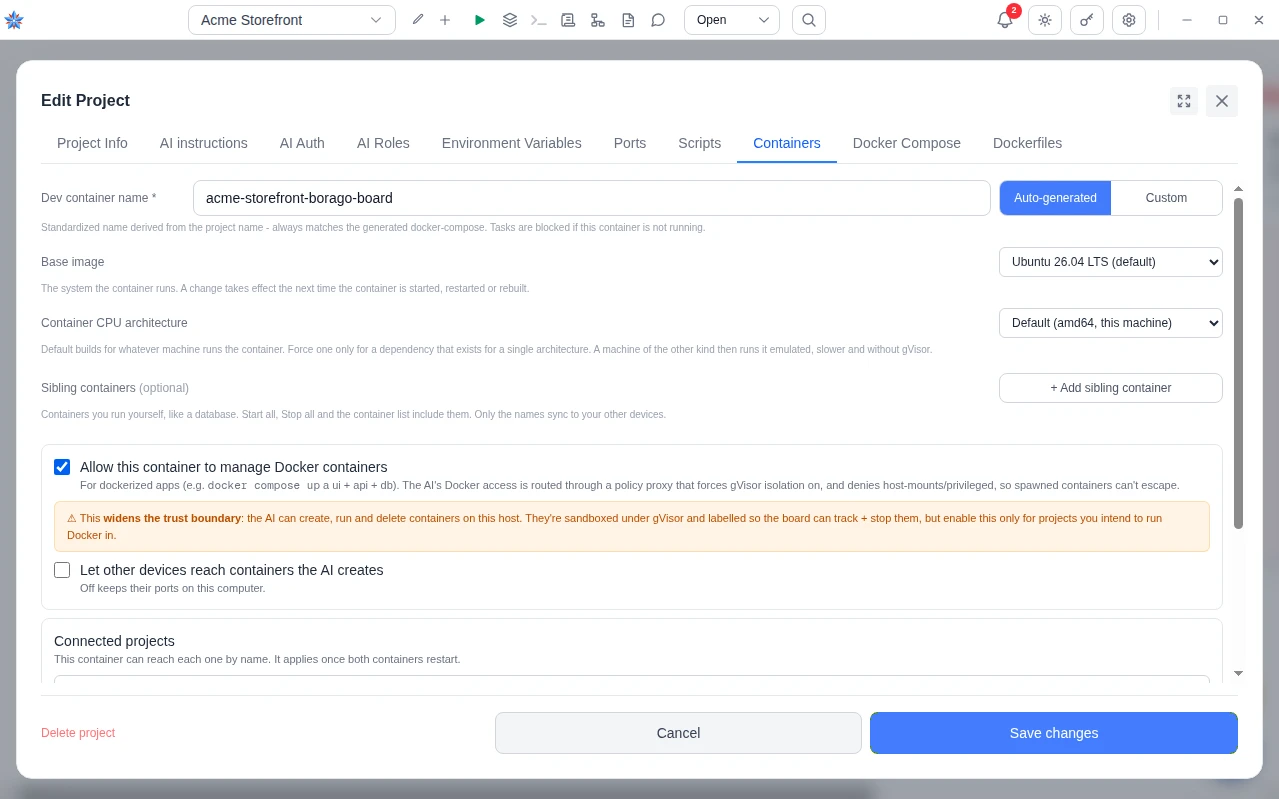
- Decide who may reach the agent's containers. Under the same checkbox, Let other devices reach containers the AI creates is off by default, so their published ports stay on this computer. Leave it off unless another device must connect. Even when on, a port the agent publishes without naming an address still lands on this computer only.
- Add the firewall rule on Linux. Below the checkboxes a panel headed Docker container management shows the proxy's port and interface and, on Linux, which firewall it detected. It probes from inside the container and reads Reachable from the container or Blocked - the AI cannot create containers. When blocked, press Allow through firewall. The rule is scoped to that one port and the app asks for your password through the desktop's standard prompt, once. The exact command is shown before and after it runs. With no graphical prompt available the app opens a terminal with the command ready, or shows it with Copy command. The panel re-checks itself after an apply, and Check re-tests at any time. Full explanation and the manual commands are on Letting Docker through your firewall. On macOS and Windows no rule is needed and the panel says so.
- Add the rule from a browser or a phone. The panel is shown on the cloud board too, and Allow through firewall works there while the desktop app is connected, because the rule is applied on the machine with the firewall. The password prompt still appears on that machine, so a person has to be at it. Nothing about this can be granted remotely.
- Know what the proxy allows. The agent may build images, create and run containers, create volumes and networks, exec into, stop and remove what it created, and use compose. Every container it creates runs under gVisor where gVisor is installed, is tracked as this project's own, and is a sibling on your machine rather than a container inside a container. Backing services belong in sibling containers, since a server installed inside the project container is lost on a rebuild.
- Know what the proxy refuses. Requests for privileged mode, host networking, host folder mounts or added capabilities are refused before they reach Docker, and so is every prune. The agent cannot touch containers, volumes, networks or images that belong to another project or that the app did not create, and cannot give an image a name another project's image already holds. An explicit non-loopback port address is refused unless step 2 allowed it.
- Watch the queue hold before a run. With management on, the queue checks from inside the container that the proxy can be reached before claiming a run. If it cannot, the project's column shows Auto-run paused - allow Docker access through the firewall with a Resume control, the notification reads that the container cannot reach the Docker policy proxy and nothing was started, and clicking it opens the Containers tab. A manual Run is refused the same way and the task is queued instead. Applying the rule or a successful Check lifts the hold at once. The hold exists so the prompt comes before a run rather than mid-run.
- See the sibling containers. Press the project's Containers button to open Containers - name, which lists the project container first and then every container in its family, with per-row start, stop and restart. The board's Start and Stop then ask Start all containers or Start only the dev container, and the same for Stop, whenever the family has more than the one. Containers you run yourself, such as an existing database, can be named under Sibling containers on the Containers tab so they join the list and the all-containers actions. The app never builds or removes those. At most 20 names.
- Know how they are cleaned up. A successful build removes the image it replaced, unless something else still uses it. Deleting a project stops its family. Destroying it from the recycle bin, or the bin's expiry, removes the family's containers, its compose-created volumes and networks and the images the app built. Base images the agent pulled, such as a database image, are shared and never removed. Settings, then Docker, then Docker disk usage lists what remains and offers Clean up for dangling images and build cache, plus per-family removal of stale leftovers behind a confirm. See Recovering things.
If it did not work
- The agent reports Docker as unavailable. Open the Containers tab and read the panel. Blocked means the firewall, so press Allow through firewall. No Docker client in the container yet means the install is still running or the container was recreated from an older image, and the panel re-checks on its own for up to five minutes.
- The panel says it could not test. The container is not running, or Docker itself is down. Start the container and press Check.
- It worked and stopped after changing wifi. A network change while the container runs breaks its path to the proxy. Restart the container from the board.
Related: Let the agent run Postgres beside the project, Letting Docker through your firewall, Connected projects, Ports and LAN access, Containers